> ## Documentation Index
> Fetch the complete documentation index at: https://docs.messari.io/llms.txt
> Use this file to discover all available pages before exploring further.
# x402 Skill for Claude Desktop
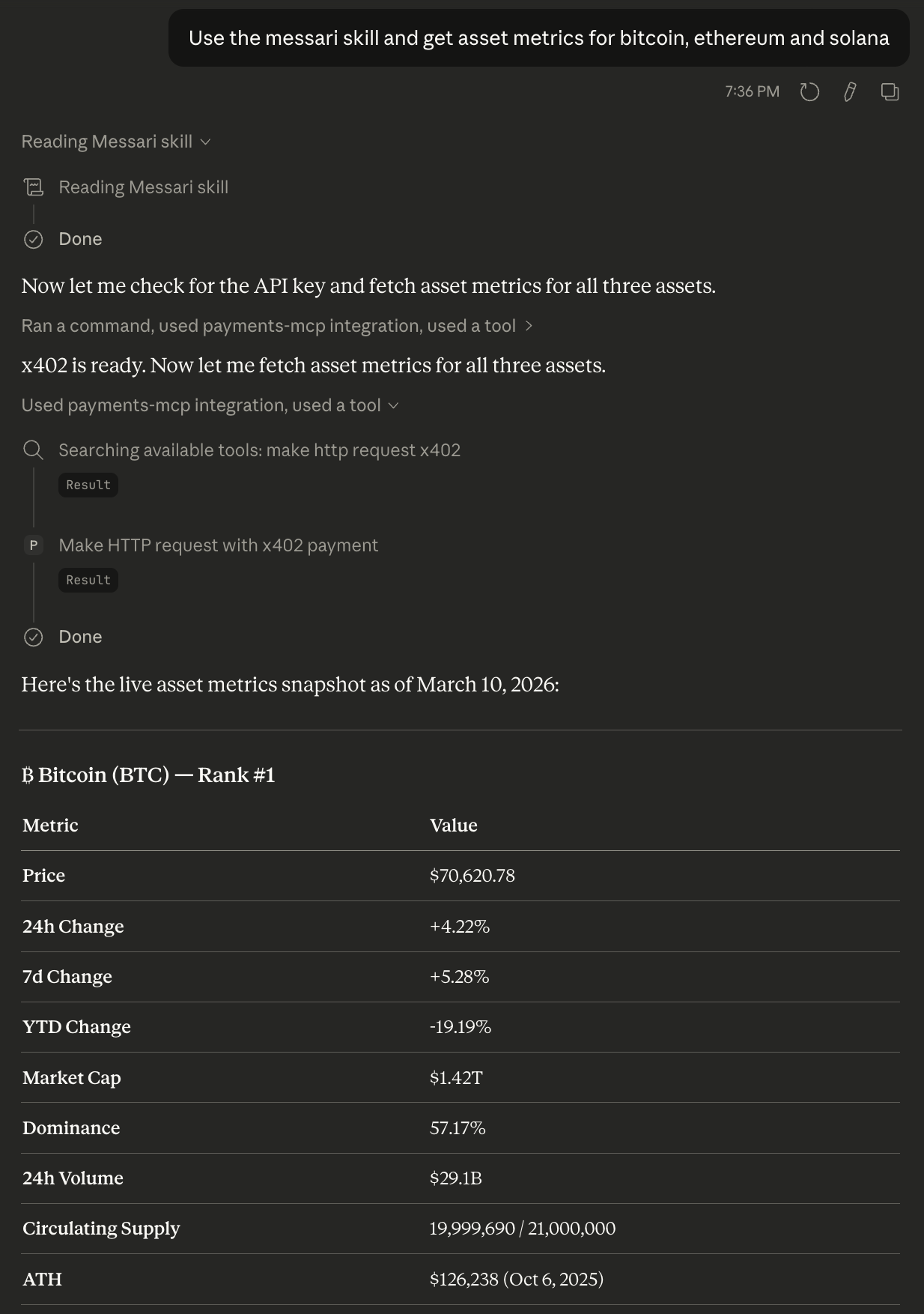
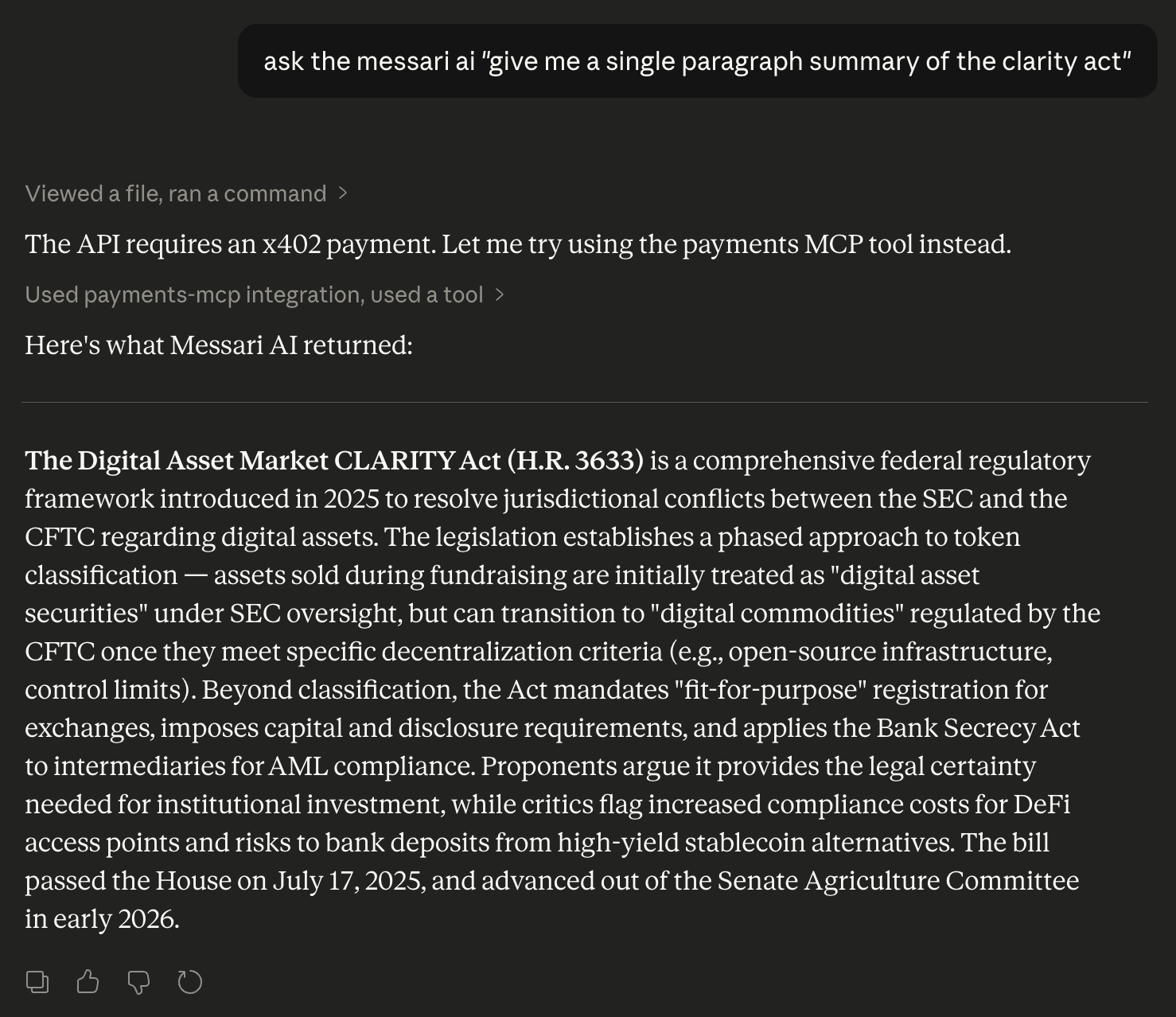
The official Messari x402 skill for Claude Desktop allows you to access Messari's data and insights directly from Claude Desktop authenticated with x402. Answer crypto questions using the Messari API: 34,000+ assets, 210+ exchanges, 14 data services
covering market metrics, social sentiment, research, on-chain analytics, fundraising, governance,
and more.
## Installation
### 1. Coinbase Payment MCP extension
For the best user experience, we recommend installing the Coinbase's Payment MCP extension which provides easy to use hosted wallet with x402 support.
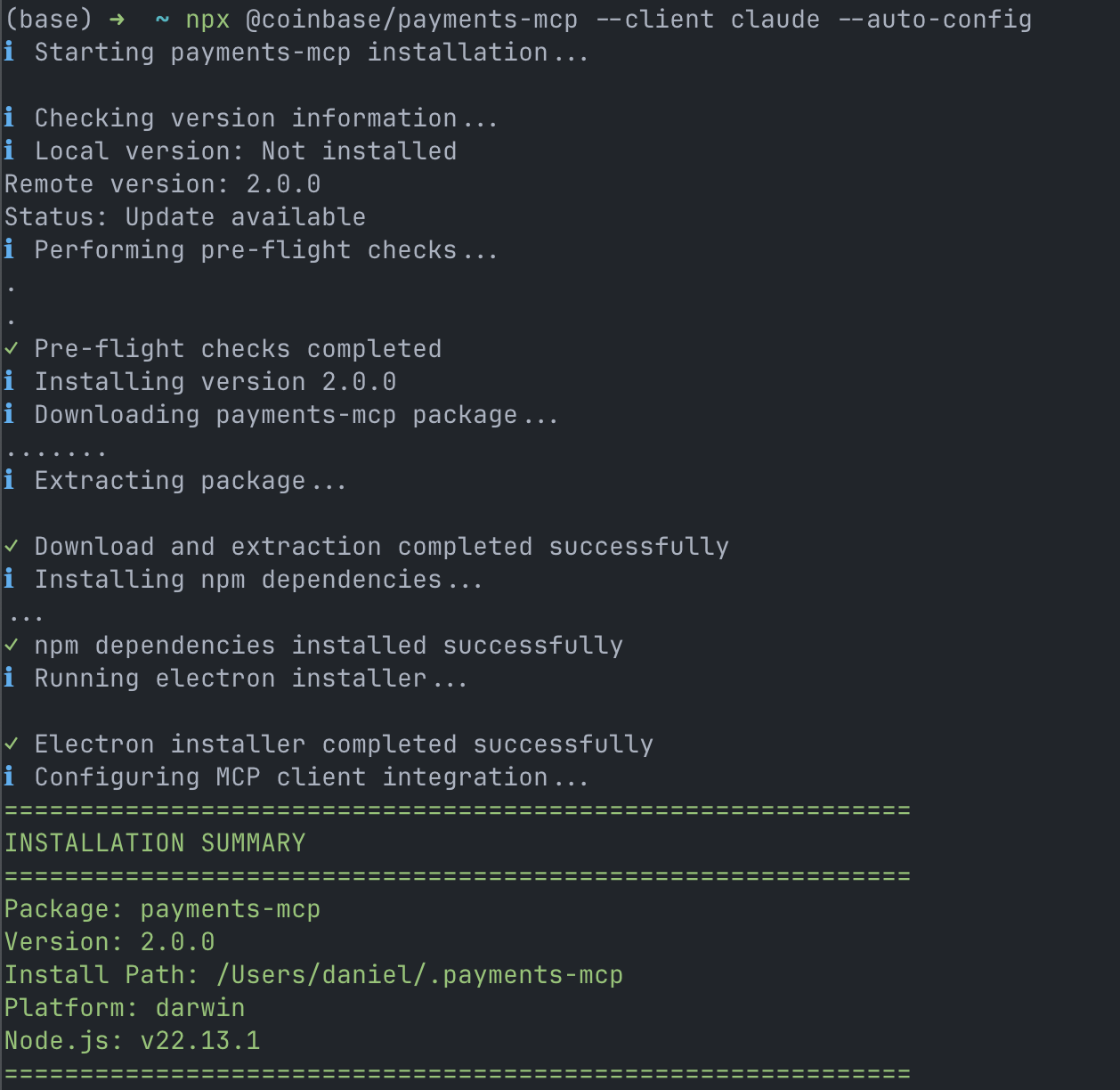
Close Claude Desktop if it is open and run the following command in your terminal
```bash theme={null}
npx @coinbase/payments-mcp@latest --client claude --auto-config
```
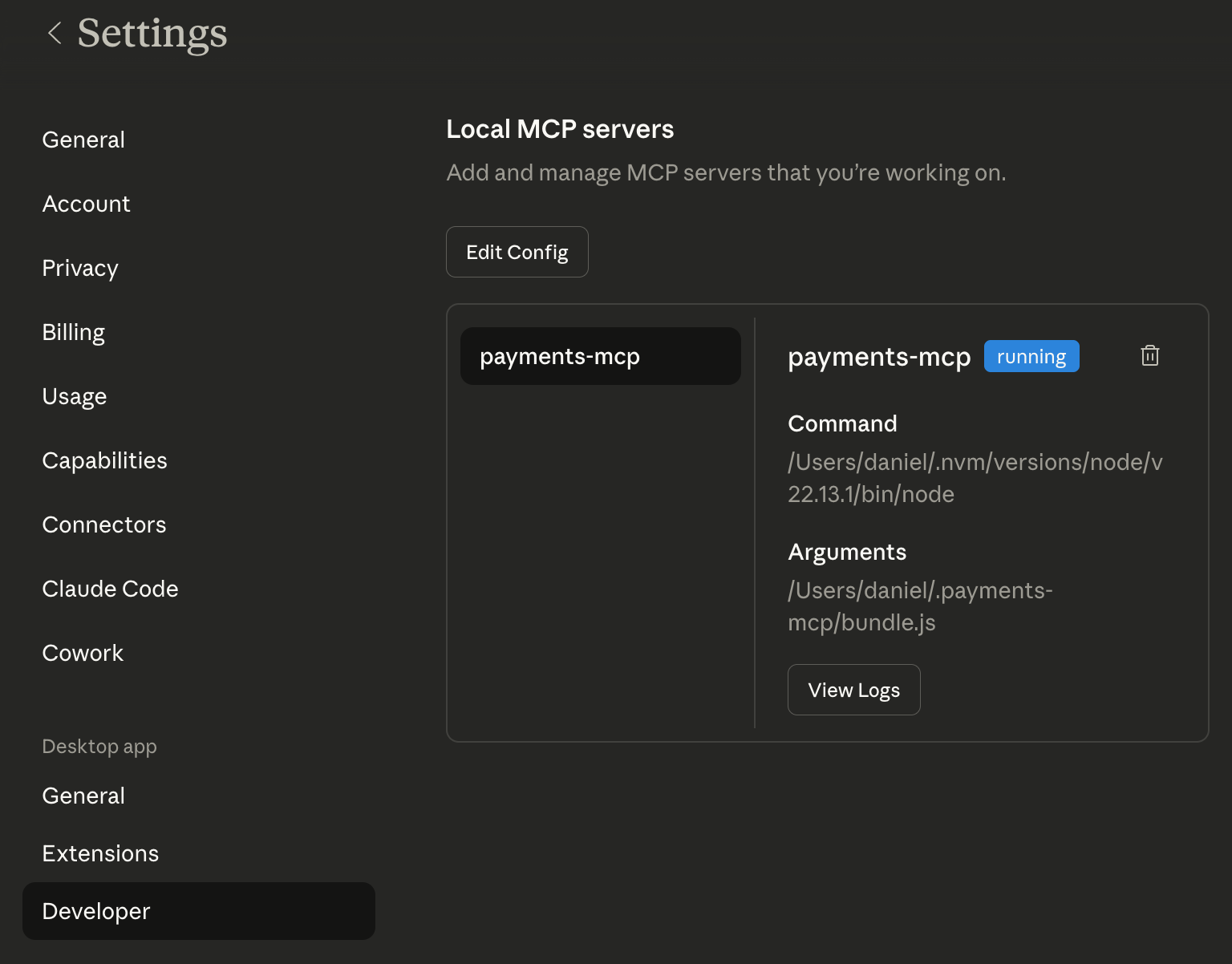
 Reopen Claude Desktop and in `Settings -> Developer` you should see the `payments-mcp` listed under "Local MCP Servers"
 ### 2. Authenticate with your x402 wallet
In a new chat, ask Claude
```
Open the payments-mcp wallet
```
### 2. Authenticate with your x402 wallet
In a new chat, ask Claude
```
Open the payments-mcp wallet
```
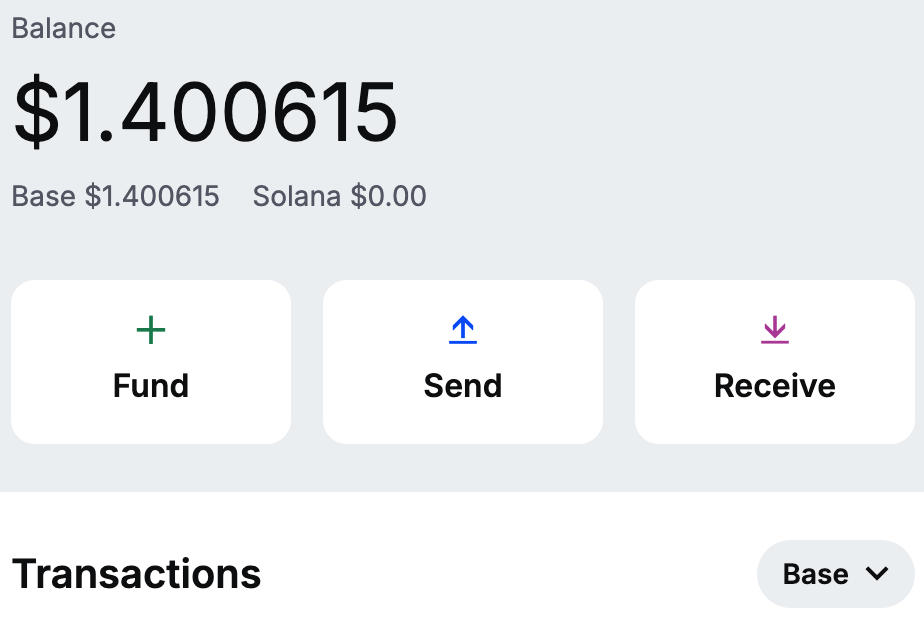
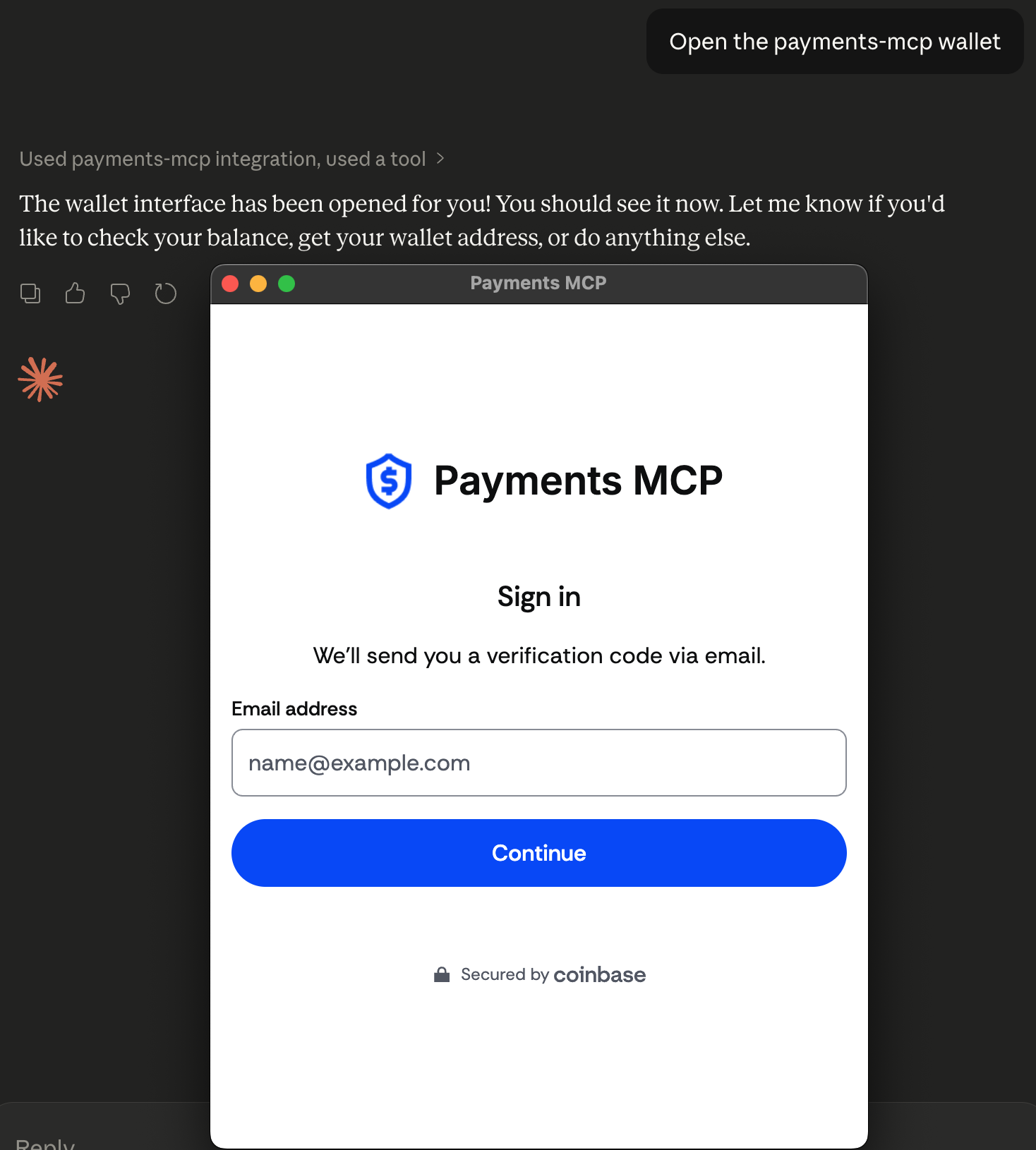 Sign with your coinbase email and your wallet is ready to use. Add USDC to the wallet with the "Fund" or "Receive" buttons
 ### 3. Get the Messari Skill
Now you’re all set wallet wise, we need to install the Messari Skill
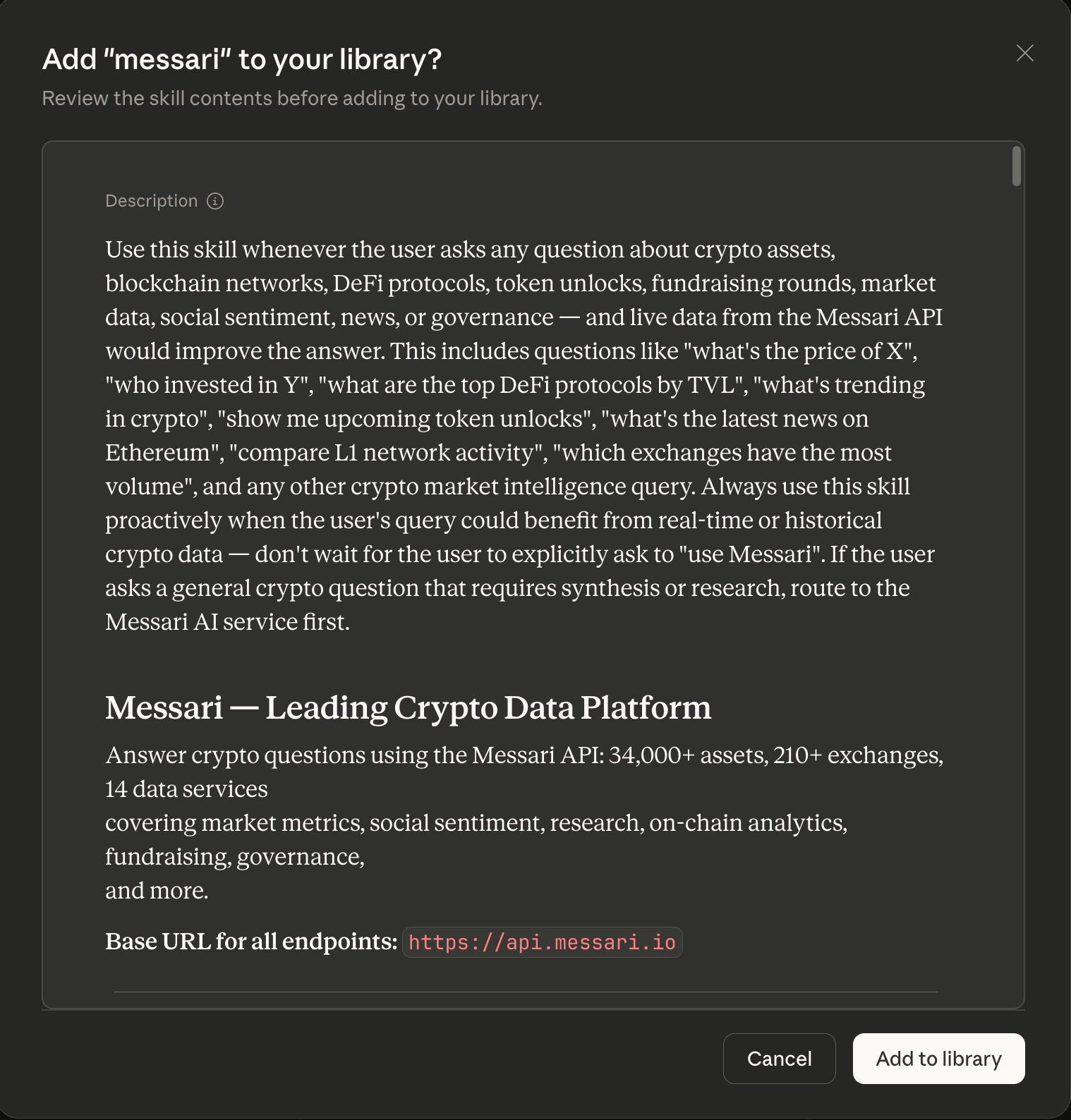
* Download this [messari.skill](https://github.com/messari/skills/raw/refs/heads/master/claude/messari.skill) file
* Click the file to open it with Claude Desktop
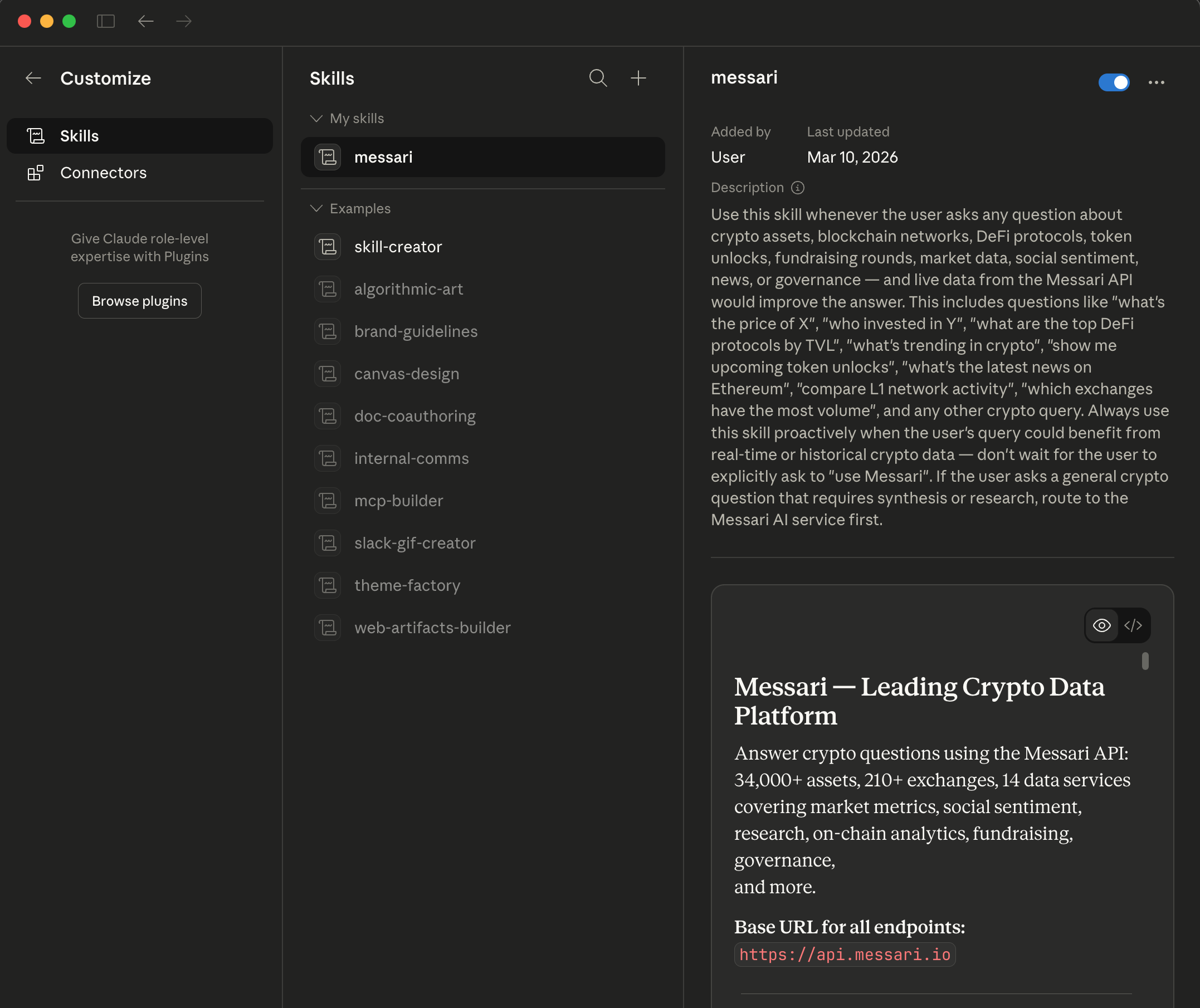
* Click "Add to Library"
### 3. Get the Messari Skill
Now you’re all set wallet wise, we need to install the Messari Skill
* Download this [messari.skill](https://github.com/messari/skills/raw/refs/heads/master/claude/messari.skill) file
* Click the file to open it with Claude Desktop
* Click "Add to Library"
 ## Usage
And you’re done! You can now ask Messari anything about crypto directly from Claude
## Usage
And you’re done! You can now ask Messari anything about crypto directly from Claude