> ## Documentation Index
> Fetch the complete documentation index at: https://docs.messari.io/llms.txt
> Use this file to discover all available pages before exploring further.
# Google Sheets Add-On
The Messari Google Sheets Add-On lets you pull Messari's market, on-chain, and social data directly into **Google Sheets** using native formulas or the built-in Formula Builder.
You can use it to:
* Pull latest or historical metrics
* Build dashboards and models
* Compare assets, networks, exchanges, and sectors
## Installation
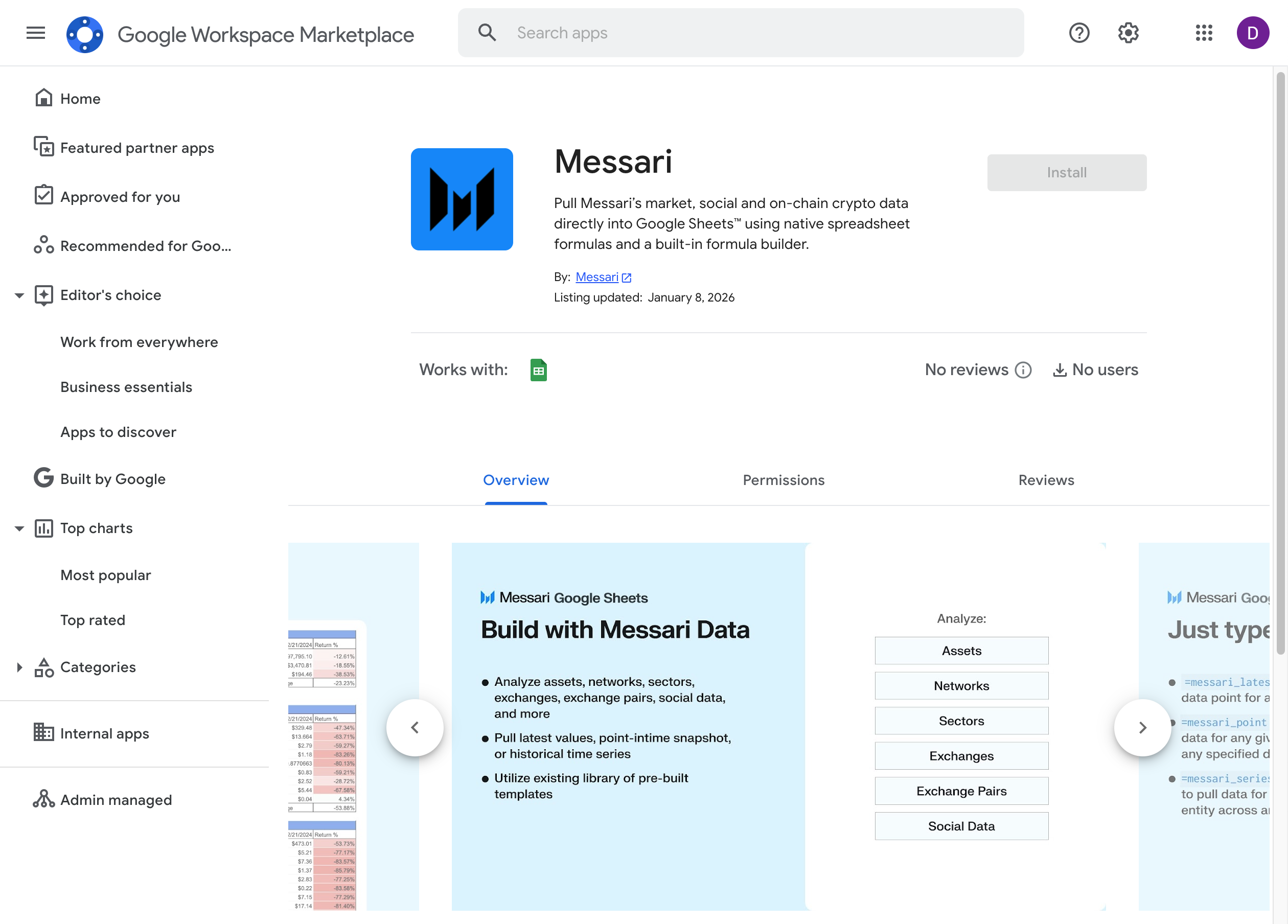
You can find the add-on in the Google Workspace Marketplace: [https://workspace.google.com/marketplace/app/messari/393080319856?flow\_type=2](https://workspace.google.com/marketplace/app/messari/393080319856?flow_type=2)
 ## Launch Add-On
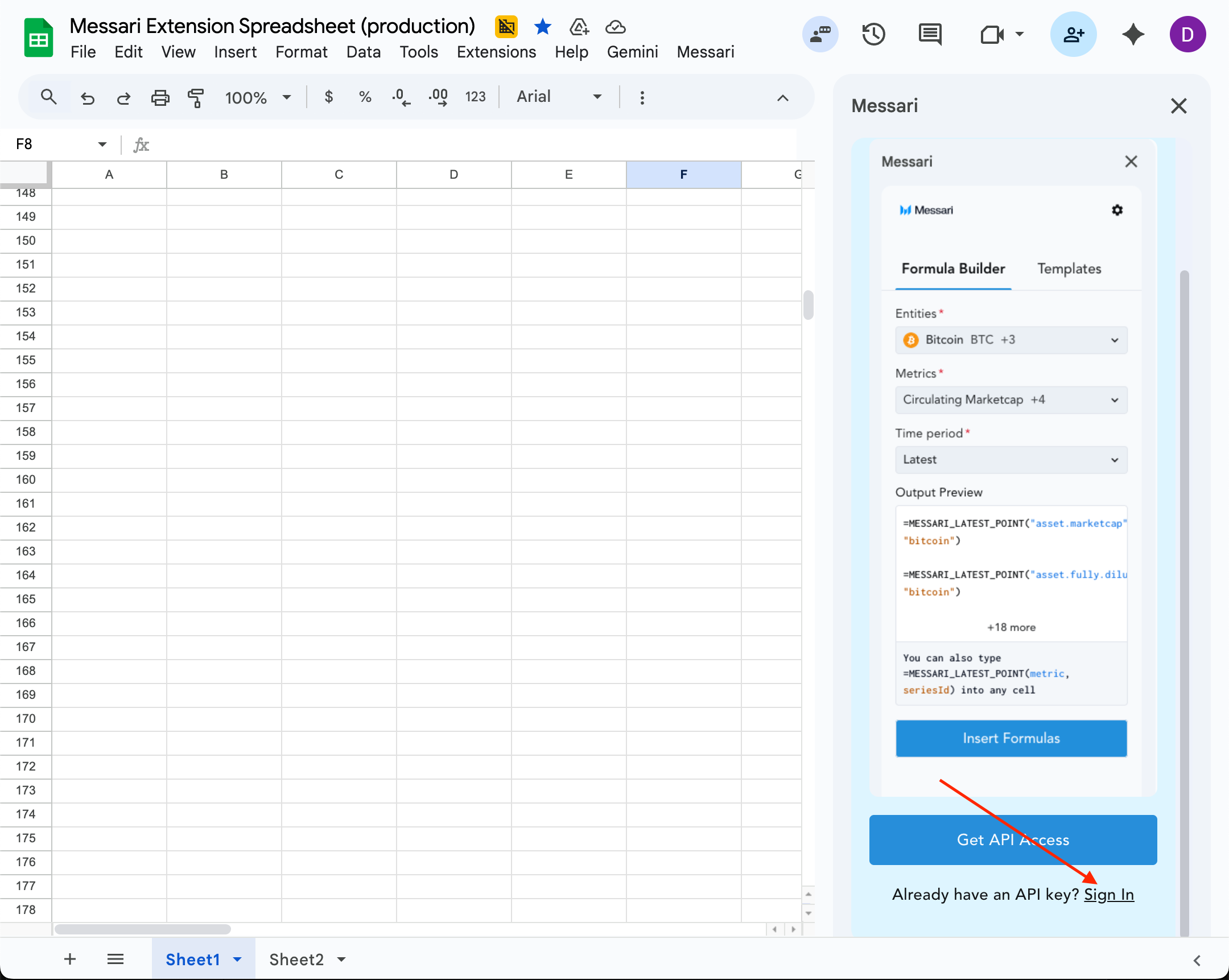
Go to the toolbar under "Extension" > Select "Messari" > "Open Sidebar"
## Launch Add-On
Go to the toolbar under "Extension" > Select "Messari" > "Open Sidebar"
-4.png?fit=max&auto=format&n=cYz0DQw42UtT6GRA&q=85&s=7b8990d7d0bb33f030aaedbc7afcd160) ### Authentication
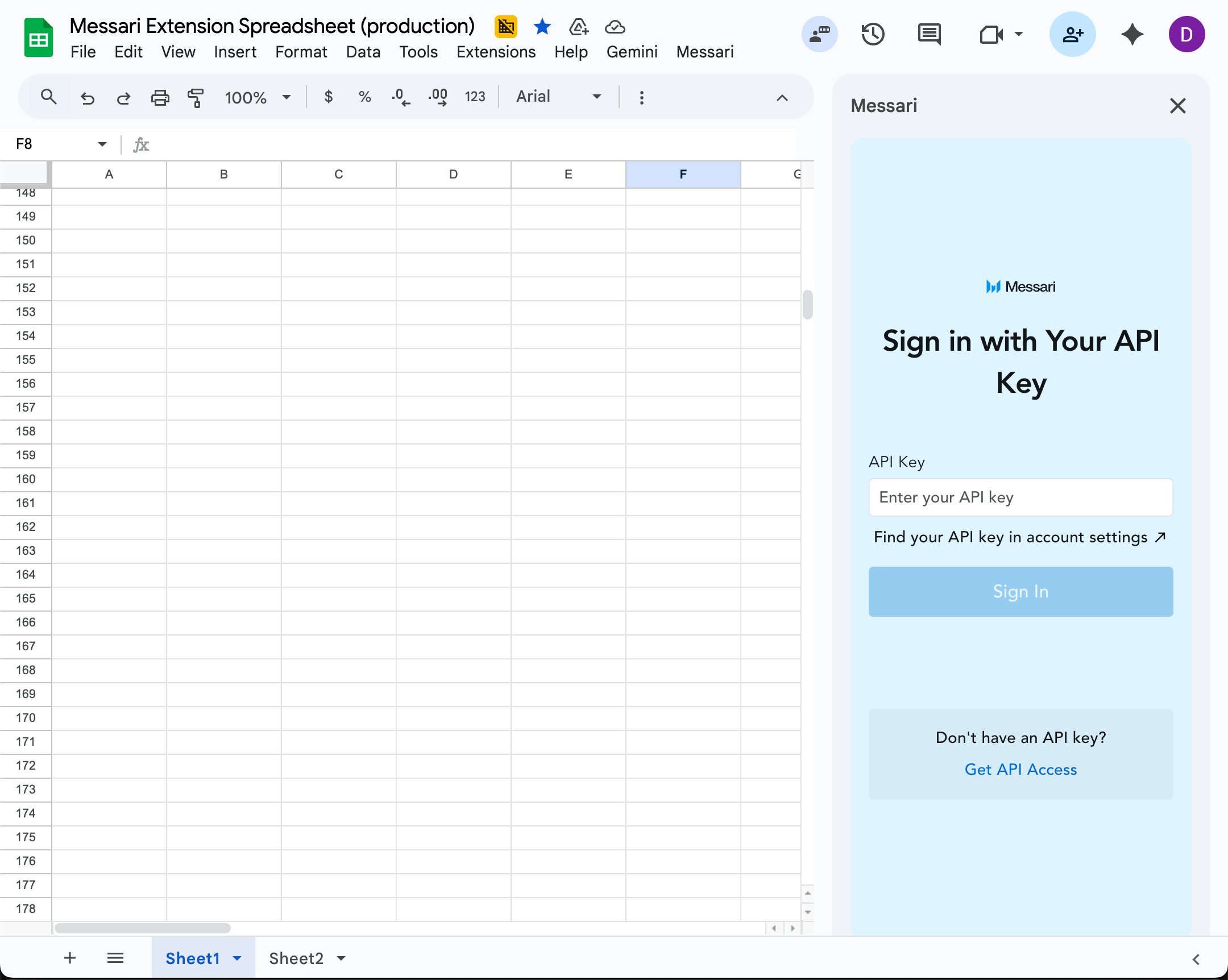
After selecting "Get Started", you’ll be prompted to authenticate with your Messari API key.
* If you are an existing Messari user, you can view / generate your API key under account settings: [https://messari.io/account/api](https://messari.io/account/api)
* If you are not a Messari user, you can sign up for an enterprise account here: [https://messari.io/enterprise/signup](https://messari.io/enterprise/signup)
Once you have your API key, click **Sign in** and enter your API key
Each user must authenticate individually. In shared spreadsheets, formulas will only run for authenticated users.
### Authentication
After selecting "Get Started", you’ll be prompted to authenticate with your Messari API key.
* If you are an existing Messari user, you can view / generate your API key under account settings: [https://messari.io/account/api](https://messari.io/account/api)
* If you are not a Messari user, you can sign up for an enterprise account here: [https://messari.io/enterprise/signup](https://messari.io/enterprise/signup)
Once you have your API key, click **Sign in** and enter your API key
Each user must authenticate individually. In shared spreadsheets, formulas will only run for authenticated users.
 ***
## Using the Formula Builder
The Formula Builder is the easiest way to get started and discover available data.
### Step 1: Select an entity
Choose what you want to analyze:
* Assets
* Assets on a specific network
* Projects
* Projects on a specific network
* Networks
* Exchanges
* Exchanges on Networks
* Sectors
* Sub-Sectors
* Markets
Use search to find the correct entity quickly.
***
### Step 2: Select a metric
After selecting an entity, choose a metric such as:
* Market cap
* Volume
* Price
* TVL
* Revenue
* Mindshare
> **Note:** If you don’t see any metrics after selecting an entity, Messari may not currently have data coverage for that entity and metric combination, or the metric may not be included in your current API access.
***
### Step 3: Select a time period
Choose how you want the data returned:
* Latest
* Specific date
* Last 7 / 14 / 30 days
* Custom date range
***
### Step 4: Insert or copy the formula
Click **Insert Formula** to insert the formula directly into the selected cell.
You can also copy the formula and paste it into any cell manually.
***
## Formula Syntax
You can always write formulas directly without using the builder.
***
### `=messari_point`
Returns the value for a specific date.
**Syntax**
```
=messari_point("metric", "entity", "date")
```
**Examples**
```
=messari_point("mcap", "ethereum", "2025-01-01")
```
Ethereum market cap on Jan 1, 2025
```
=messari_point("market.volume", "coinbase:BTC/USDT", "2025-01-01")
```
Coinbase BTC/USDT volume on Jan 1, 2025
```
=messari_point("sector.mcap", "DeFi", "2025-01-01")
```
DeFi sector market cap on Jan 1, 2025
***
### `=messari_latest_point`
Returns the most recent daily value.
**Syntax**
```
=messari_latest_point("metric", "entity")
```
**Examples**
```
=messari_latest_point("volume", "ethereum")
```
Latest daily volume for Ethereum
```
=messari_latest_point("asset.circulating.supply", "solana")
```
Latest daily TVL for the Base network
***
### `=messari_series`
Returns a time series over a date range.
**Syntax**
```
=messari_series( "metric","entity", "startDate","endDate",includeHeaders,includeDateCol)
```
The includeHeaders and inlcudeDateCol are optional parameters.
**Examples**
```
=messari_series( "exchange.volume", "binance","2025-01-01","2025-01-30", true,true)
```
```
=messari_series( "asset.revenue", "chainlink", "2025-01-01","2025-01-30", true, true)
```
***
## Access to Metrics
Access to specific metrics in the Messari spreadsheet plugin is determined by your organization’s API permissions.
By default, enterprise organizations have access to market, exchange, and asset metrics. Access to additional datasets such as on-chain metrics, mindshare, and sentiment requires the corresponding API permissions.
You can view your available APIs and permissions in your account settings:\
[https://messari.io/account/api](https://messari.io/account/api) .
If a metric does not appear in the Formula Builder, it may not be included in your current API access.
## Share Feedback [Here](https://06jiny4c1wy.typeform.com/to/CHPpGGYb)
### Terms of Service: [https://messari.io/terms-of-service](https://messari.io/terms-of-service)
### Privacy Policy: [https://messari.io/privacy-policy](https://messari.io/privacy-policy)
***
## Using the Formula Builder
The Formula Builder is the easiest way to get started and discover available data.
### Step 1: Select an entity
Choose what you want to analyze:
* Assets
* Assets on a specific network
* Projects
* Projects on a specific network
* Networks
* Exchanges
* Exchanges on Networks
* Sectors
* Sub-Sectors
* Markets
Use search to find the correct entity quickly.
***
### Step 2: Select a metric
After selecting an entity, choose a metric such as:
* Market cap
* Volume
* Price
* TVL
* Revenue
* Mindshare
> **Note:** If you don’t see any metrics after selecting an entity, Messari may not currently have data coverage for that entity and metric combination, or the metric may not be included in your current API access.
***
### Step 3: Select a time period
Choose how you want the data returned:
* Latest
* Specific date
* Last 7 / 14 / 30 days
* Custom date range
***
### Step 4: Insert or copy the formula
Click **Insert Formula** to insert the formula directly into the selected cell.
You can also copy the formula and paste it into any cell manually.
***
## Formula Syntax
You can always write formulas directly without using the builder.
***
### `=messari_point`
Returns the value for a specific date.
**Syntax**
```
=messari_point("metric", "entity", "date")
```
**Examples**
```
=messari_point("mcap", "ethereum", "2025-01-01")
```
Ethereum market cap on Jan 1, 2025
```
=messari_point("market.volume", "coinbase:BTC/USDT", "2025-01-01")
```
Coinbase BTC/USDT volume on Jan 1, 2025
```
=messari_point("sector.mcap", "DeFi", "2025-01-01")
```
DeFi sector market cap on Jan 1, 2025
***
### `=messari_latest_point`
Returns the most recent daily value.
**Syntax**
```
=messari_latest_point("metric", "entity")
```
**Examples**
```
=messari_latest_point("volume", "ethereum")
```
Latest daily volume for Ethereum
```
=messari_latest_point("asset.circulating.supply", "solana")
```
Latest daily TVL for the Base network
***
### `=messari_series`
Returns a time series over a date range.
**Syntax**
```
=messari_series( "metric","entity", "startDate","endDate",includeHeaders,includeDateCol)
```
The includeHeaders and inlcudeDateCol are optional parameters.
**Examples**
```
=messari_series( "exchange.volume", "binance","2025-01-01","2025-01-30", true,true)
```
```
=messari_series( "asset.revenue", "chainlink", "2025-01-01","2025-01-30", true, true)
```
***
## Access to Metrics
Access to specific metrics in the Messari spreadsheet plugin is determined by your organization’s API permissions.
By default, enterprise organizations have access to market, exchange, and asset metrics. Access to additional datasets such as on-chain metrics, mindshare, and sentiment requires the corresponding API permissions.
You can view your available APIs and permissions in your account settings:\
[https://messari.io/account/api](https://messari.io/account/api) .
If a metric does not appear in the Formula Builder, it may not be included in your current API access.
## Share Feedback [Here](https://06jiny4c1wy.typeform.com/to/CHPpGGYb)
### Terms of Service: [https://messari.io/terms-of-service](https://messari.io/terms-of-service)
### Privacy Policy: [https://messari.io/privacy-policy](https://messari.io/privacy-policy)