> ## Documentation Index
> Fetch the complete documentation index at: https://docs.messari.io/llms.txt
> Use this file to discover all available pages before exploring further.
# Messari Copilot Slack Bot
## **Setting Up the Messari Copilot Slack Bot**
To enable the **Slack Copilot Bot**, ensure the following prerequisites:
* You must be an **admin** of a **Messari Enterprise team**.
* Your account must have **AI Toolkit credits**.
* To check your credits, visit: messari.io/account/api
* If you don’t have credits, contact your account manager or email [sales@messari.io](mailto:sales@messari.io)
### **Installation Steps**
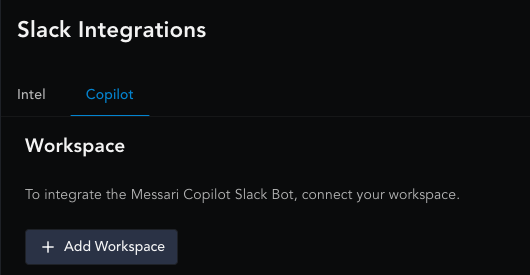
1. **Go to the Copilot Integration Page**
Visit messari.io/account/integrations/slack/copilot and click **Add Workspace**.
 2. **Select Your Workspace**
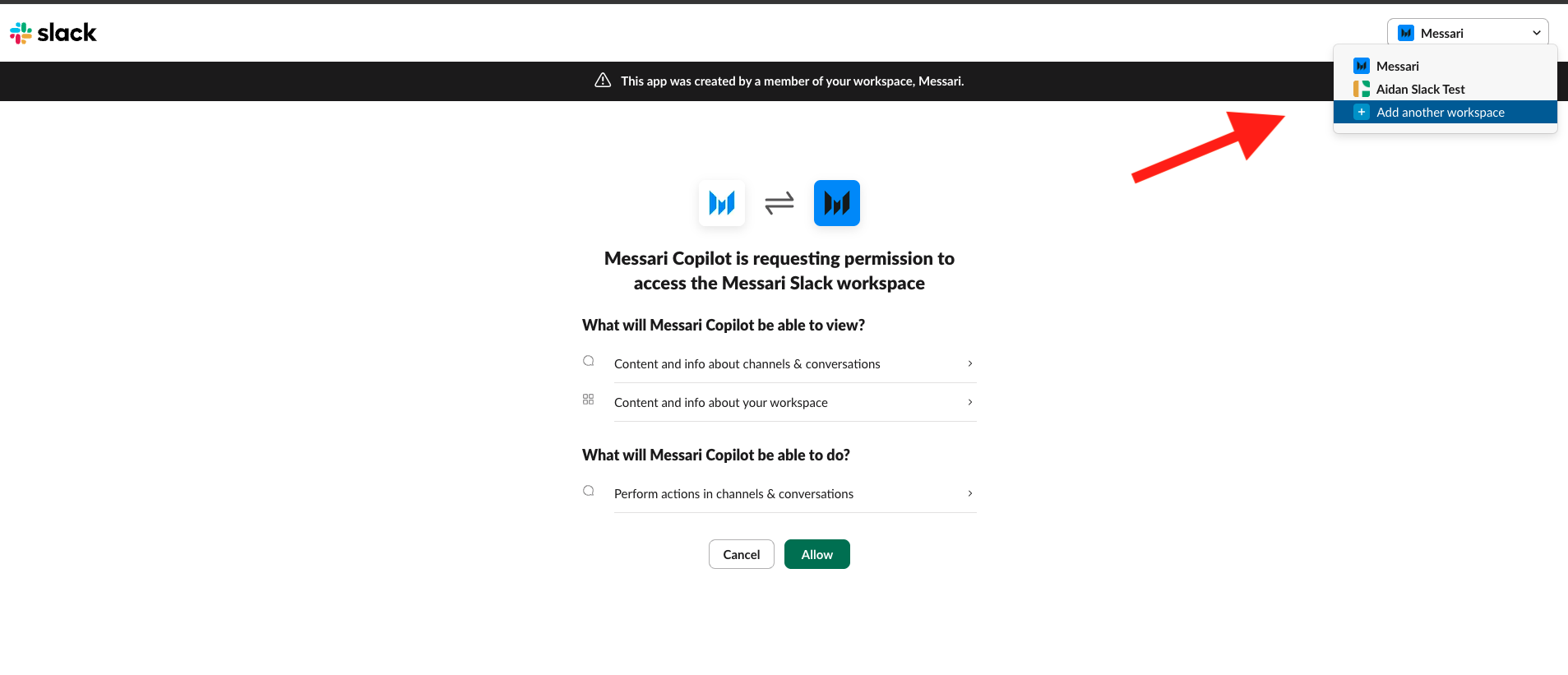
Choose the Slack workspace where you’d like to add the Copilot Bot.
2. **Select Your Workspace**
Choose the Slack workspace where you’d like to add the Copilot Bot.
 3. **Grant Permissions via Slack**
You’ll be redirected to a Slack pop-up requesting permission for the bot.
The bot will request access to:
* View channels and conversations (Note: the Slack bot cannot read all of the historic messages of a Slack channel)
* View workspace content and info
* Perform actions in channels and conversations\
Click **Allow** to continue.
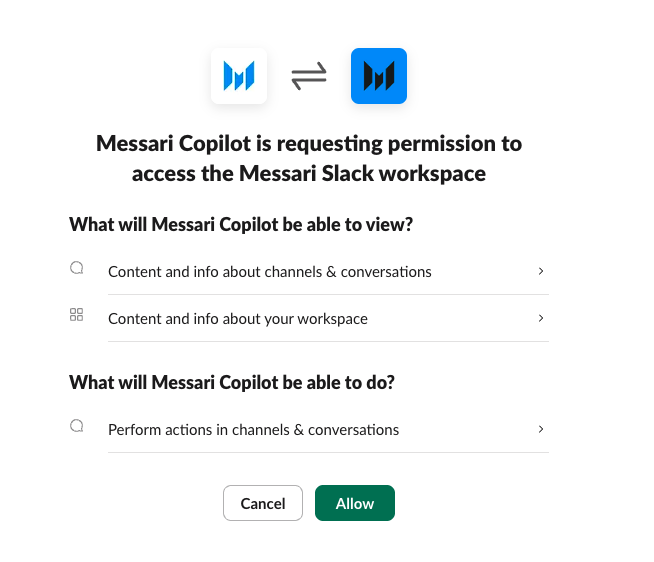
3. **Grant Permissions via Slack**
You’ll be redirected to a Slack pop-up requesting permission for the bot.
The bot will request access to:
* View channels and conversations (Note: the Slack bot cannot read all of the historic messages of a Slack channel)
* View workspace content and info
* Perform actions in channels and conversations\
Click **Allow** to continue.
 4. **Confirmation**
Once permissions are accepted, the bot will be added to your Slack workspace.
You’ll receive a confirmation notification within Messari.
4. **Confirmation**
Once permissions are accepted, the bot will be added to your Slack workspace.
You’ll receive a confirmation notification within Messari.
 5. **Optional: Remove the Bot**
You can disconnect the bot anytime by visiting:
[messari.io/account/integrations/slack/copilot-bot](https://messari.io/account/integrations/slack/copilot-bot)
Then click **Disconnect**. Once disconnected you will need to remove the bot from your slack to finish the disconnection process.
5. **Optional: Remove the Bot**
You can disconnect the bot anytime by visiting:
[messari.io/account/integrations/slack/copilot-bot](https://messari.io/account/integrations/slack/copilot-bot)
Then click **Disconnect**. Once disconnected you will need to remove the bot from your slack to finish the disconnection process.
 ### **Using the Bot in Slack**
* The Slack Copilot bot will work in DM, Group DM, Private channels, and Public channels
* **Adding to a Channel**\
You can add the bot to any channel by:
* Using the **member list toggle** to add the bot manually, or
* Typing `@Messari Copilot` to invite it directly.
* **Sending Direct Messages**\
DM the Copilot Bot to ask private questions directly.\
When DMing the Copilot bot, you do not need to @ the bot to receive a response
* **Using in Shared Channels**\
To interact in shared channels:
* Always mention `@Messari Copilot` to receive a reply.
* Replies from the bot will appear in the thread.
* Follow-up questions can be asked by anyone in the thread by tagging the bot again.
### **Using the Bot in Slack**
* The Slack Copilot bot will work in DM, Group DM, Private channels, and Public channels
* **Adding to a Channel**\
You can add the bot to any channel by:
* Using the **member list toggle** to add the bot manually, or
* Typing `@Messari Copilot` to invite it directly.
* **Sending Direct Messages**\
DM the Copilot Bot to ask private questions directly.\
When DMing the Copilot bot, you do not need to @ the bot to receive a response
* **Using in Shared Channels**\
To interact in shared channels:
* Always mention `@Messari Copilot` to receive a reply.
* Replies from the bot will appear in the thread.
* Follow-up questions can be asked by anyone in the thread by tagging the bot again.