> ## Documentation Index
> Fetch the complete documentation index at: https://docs.messari.io/llms.txt
> Use this file to discover all available pages before exploring further.
# Telegram Alerts
## **Overview**
**Telegram Alerts** allow you to receive monitoring alerts directly in Telegram — no email, Slack, or webhook infrastructure required. Alerts can be sent two ways:
* **Direct Message** — the Messari bot messages you directly.
* **Group** — the Messari bot posts into a Telegram group you choose, so a whole team sees each alert.
There is a limit to the group size that can receive alerts. Only groups
smaller than **10** members can receive alerts.
Connecting Telegram is a one-time setup per View. You pick a destination, open a secure link that hands off to Telegram, complete a short confirmation there, and then verify the connection back in the app. This page walks through that flow end to end.
Each Telegram connection is tied to a single Monitoring View. If you want
alerts from several Views in the same chat, connect each View to that chat
individually.
***
## **Connecting Telegram**
You configure Telegram on the **alerts step** of a Monitoring View — the same place you enable email, Slack, or webhook delivery.
On the View's alerts step, switch the **Telegram** toggle on. Two destination buttons appear: **Group** and **Direct Message**.
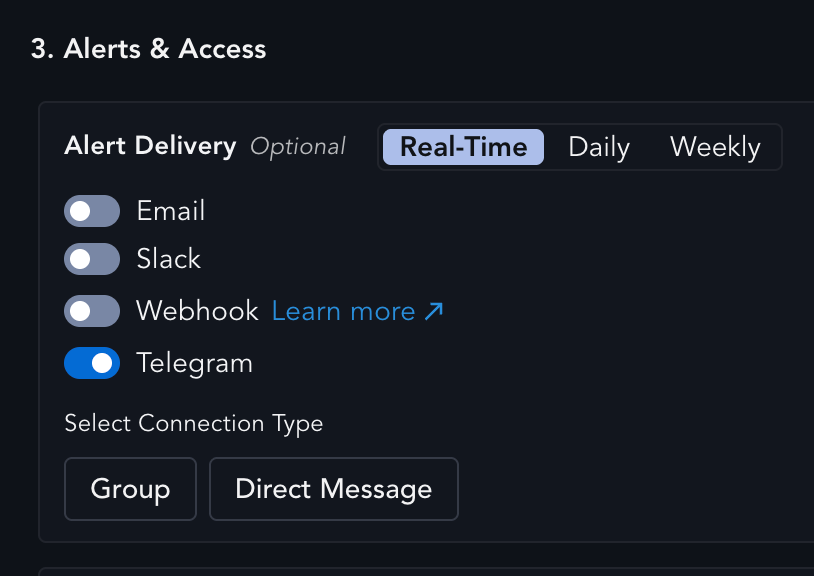 Pick where alerts should go. This choice generates a **one-time Telegram deep link** unique to this View and reveals a **Click to Connect Telegram** button.
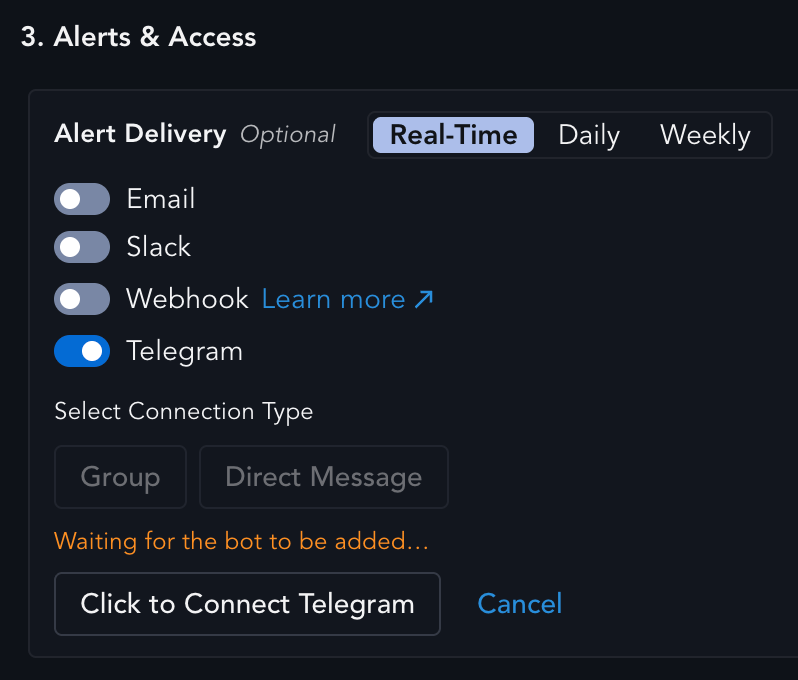 The deep link is single-use and expires after a short window. If you don't finish the connection in time, the status shows an error — just [cancel and start over](#managing-an-existing-connection) to generate a fresh link.
Select **Click to Connect Telegram**. A small popup opens Telegram (the desktop/mobile app if you have it installed, otherwise Telegram Web) with the **Messari bot** ready to either be added to a group or directly to DMs.
The deep link is single-use and expires after a short window. If you don't finish the connection in time, the status shows an error — just [cancel and start over](#managing-an-existing-connection) to generate a fresh link.
Select **Click to Connect Telegram**. A small popup opens Telegram (the desktop/mobile app if you have it installed, otherwise Telegram Web) with the **Messari bot** ready to either be added to a group or directly to DMs.
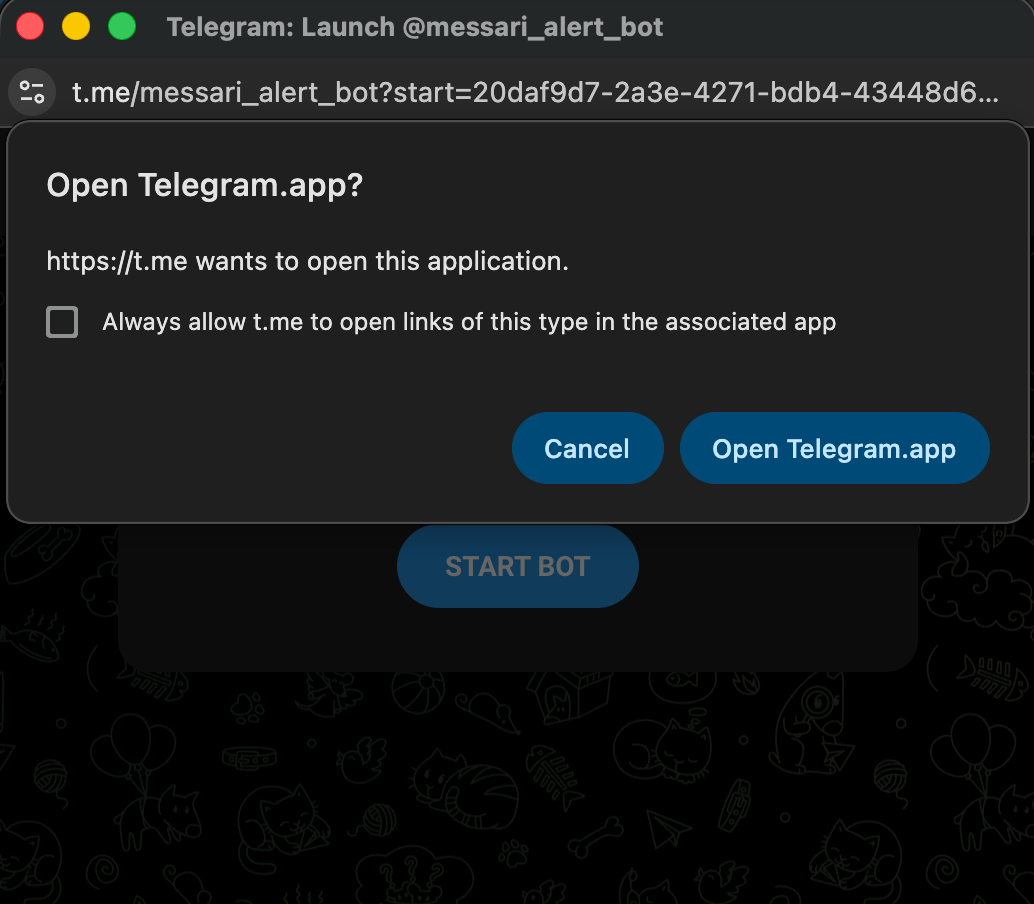 Finish the handoff inside Telegram based on the destination you picked:
* **Direct Message** — setup is complete.
Finish the handoff inside Telegram based on the destination you picked:
* **Direct Message** — setup is complete.
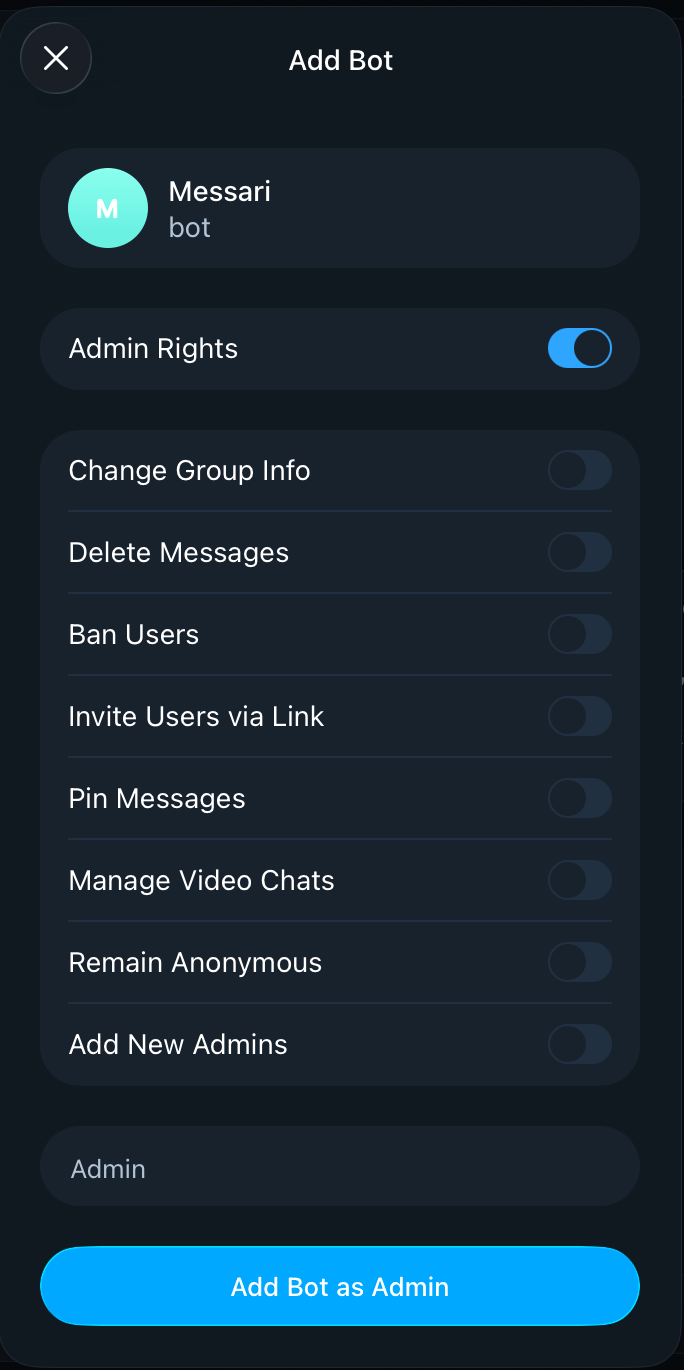
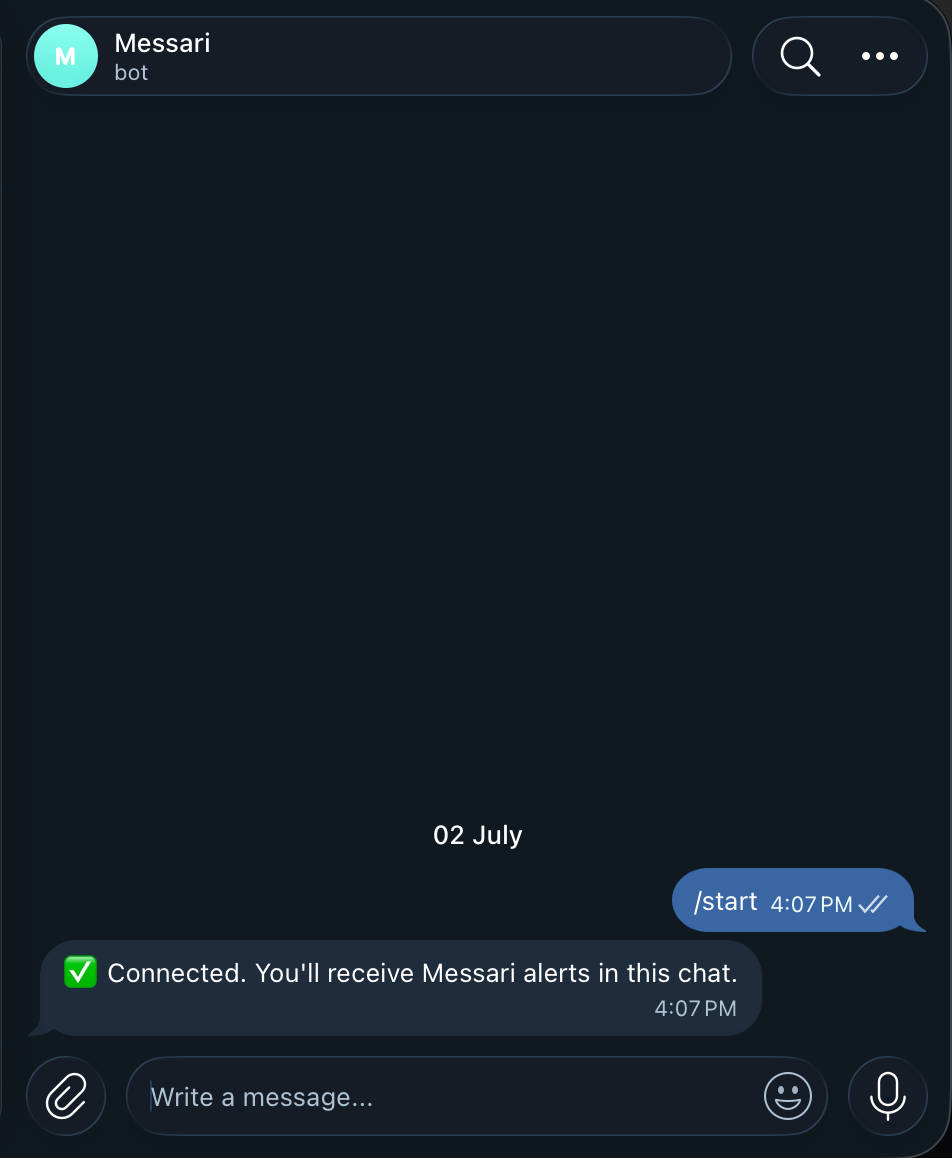 * **Group** — there's one more step: select your group under **Add to Group**, then **Add Bot as Admin**.
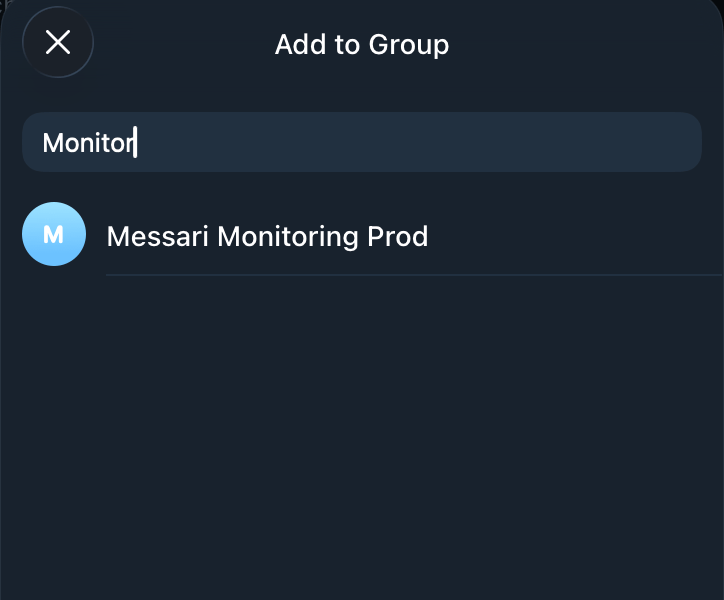 For groups, granting Admin rights is required. If the bot is added but left as a regular member, the connection stays pending until you promote it to Admin.
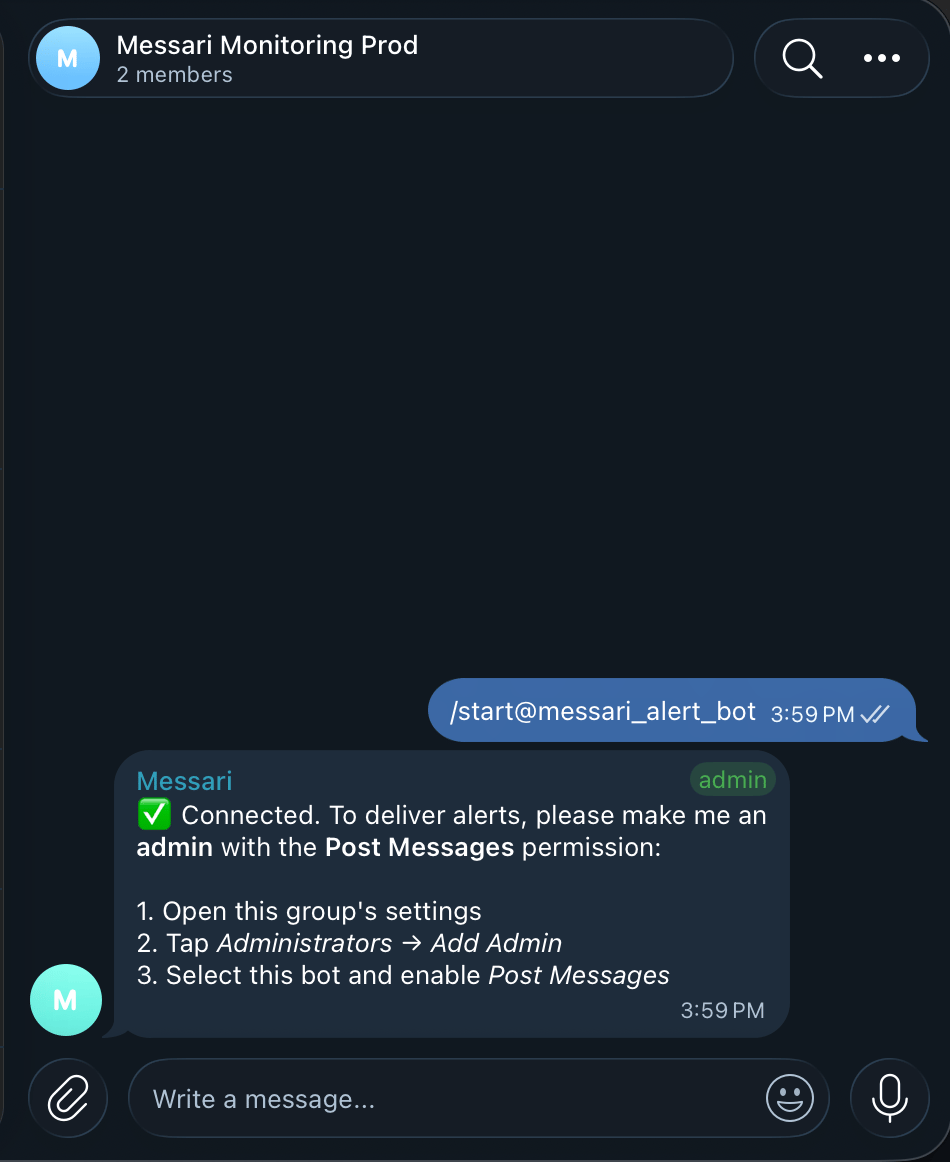 Back in the app, click **Check Connection**.
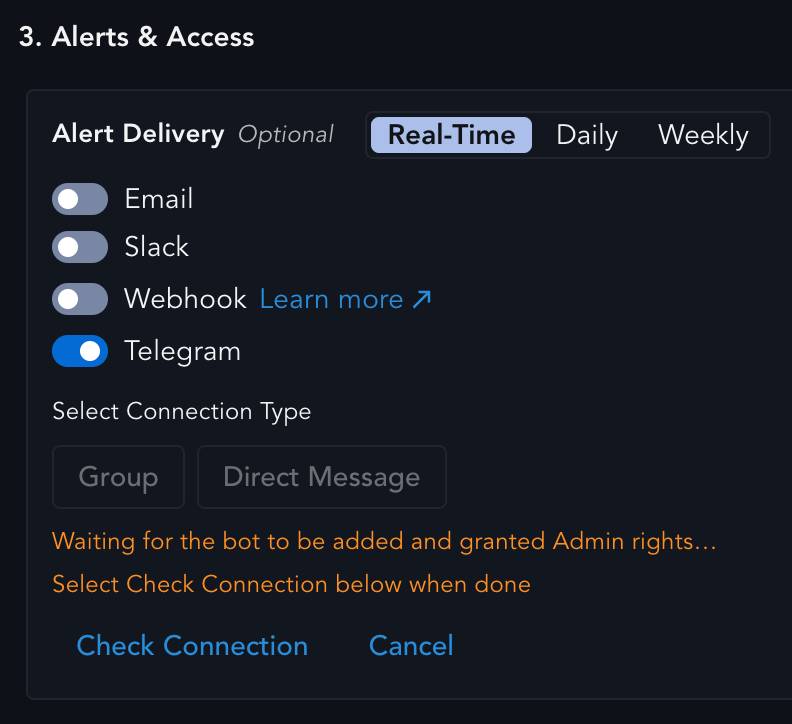 The status line updates to show where things stand — see [Connection Status](#connection-status) below. Repeat this step after you've finished the Telegram side; it may take a moment for the confirmation to register.
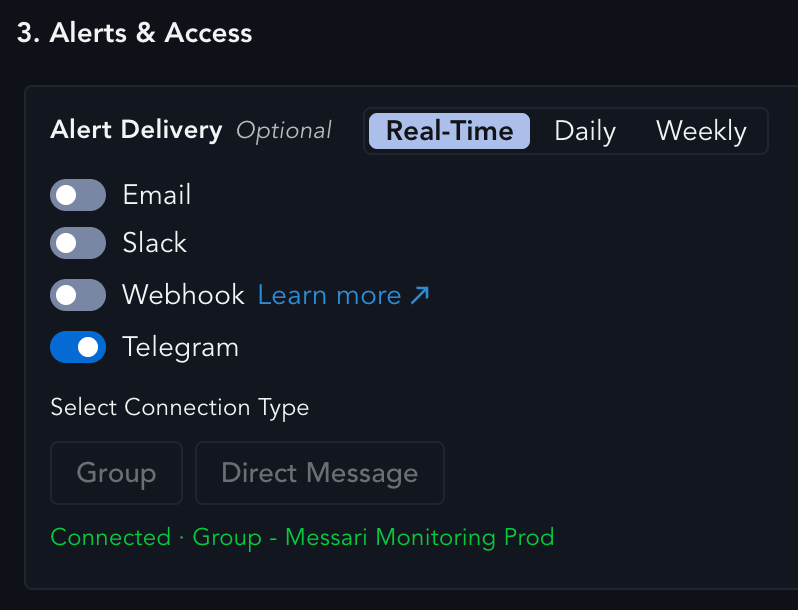 Once the status reads **Connected**, save the Monitoring View. Telegram delivery is now active — matching alerts for this View will be delivered to the chat you connected.
***
## **Connection Status**
After you click **Check Connection**, the status line reflects the current state of the handoff. Use it to tell whether Telegram is fully wired up or still waiting on a step:
| Status | What it means |
| ----------------------------------------------------------- | ---------------------------------------------------------------------------- |
| `Waiting for the bot to be added…` | Direct Message chosen, but you haven't started the chat with the bot yet. |
| `Waiting for group Admin rights…` | Group chosen and the bot was added, but it hasn't been granted Admin rights. |
| `Waiting for the bot to be added and granted Admin rights…` | Group chosen, but nothing has been done in Telegram yet. |
| `Connected · Direct Message` | Success — alerts will be sent to you as a direct message. |
| `Connected · Group – ` | Success — alerts will be posted to the named group. |
If the status doesn't update immediately, wait a couple of seconds and click
**Check Connection** again — the confirmation from Telegram can take a moment
to propagate.
***
## **Managing an Existing Connection**
**Cancel before connecting.** At any point before the connection completes, you can click **Cancel** to back out and choose a different destination (for example, switch from Direct Message to a Group). Cancelling discards the pending deep link.
**Expired link.** The deep link is valid for a limited time. If you wait too long, the status shows an error and the link stops working. Cancel and start over to generate a fresh one.
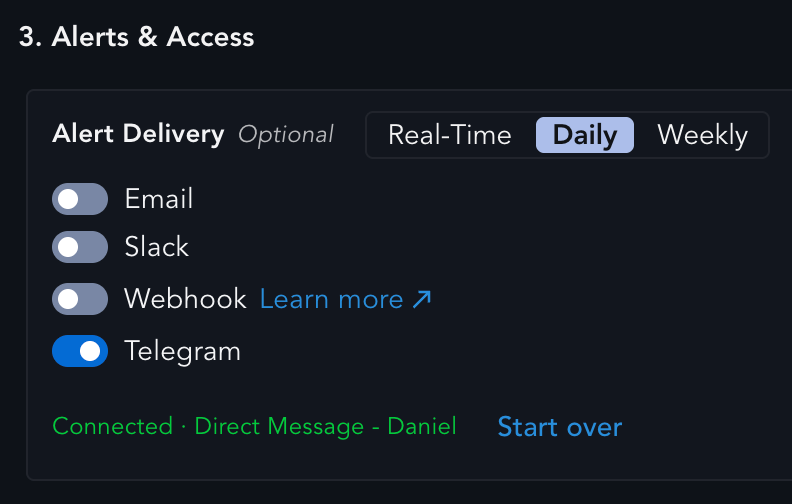
**Rebinding a connected View.** If you open a View that's already connected to Telegram, you'll see a read-only **Connected** row showing the current destination, with a **Start over** option. Choosing **Start over** lets you rebind the View to a different chat. The existing connection keeps delivering until the new one succeeds, so you won't miss alerts during the switch.
Once the status reads **Connected**, save the Monitoring View. Telegram delivery is now active — matching alerts for this View will be delivered to the chat you connected.
***
## **Connection Status**
After you click **Check Connection**, the status line reflects the current state of the handoff. Use it to tell whether Telegram is fully wired up or still waiting on a step:
| Status | What it means |
| ----------------------------------------------------------- | ---------------------------------------------------------------------------- |
| `Waiting for the bot to be added…` | Direct Message chosen, but you haven't started the chat with the bot yet. |
| `Waiting for group Admin rights…` | Group chosen and the bot was added, but it hasn't been granted Admin rights. |
| `Waiting for the bot to be added and granted Admin rights…` | Group chosen, but nothing has been done in Telegram yet. |
| `Connected · Direct Message` | Success — alerts will be sent to you as a direct message. |
| `Connected · Group – ` | Success — alerts will be posted to the named group. |
If the status doesn't update immediately, wait a couple of seconds and click
**Check Connection** again — the confirmation from Telegram can take a moment
to propagate.
***
## **Managing an Existing Connection**
**Cancel before connecting.** At any point before the connection completes, you can click **Cancel** to back out and choose a different destination (for example, switch from Direct Message to a Group). Cancelling discards the pending deep link.
**Expired link.** The deep link is valid for a limited time. If you wait too long, the status shows an error and the link stops working. Cancel and start over to generate a fresh one.
**Rebinding a connected View.** If you open a View that's already connected to Telegram, you'll see a read-only **Connected** row showing the current destination, with a **Start over** option. Choosing **Start over** lets you rebind the View to a different chat. The existing connection keeps delivering until the new one succeeds, so you won't miss alerts during the switch.
 **Start over** replaces the destination for this View only. Other Views
connected to the same chat are unaffected.
**Start over** replaces the destination for this View only. Other Views
connected to the same chat are unaffected.