> ## Documentation Index
> Fetch the complete documentation index at: https://docs.messari.io/llms.txt
> Use this file to discover all available pages before exploring further.
# Alert Manager
# **Alert Manager Overview**
The Alert Manager tool lets users view and manage alerts for Key Developments, Research, Governance, Diligence Reports, and Slack notifications (for Enterprise Admins).
This page includes a step-by-step guide on getting the most from Messari's Alert Manager.
***
# **Research Alerts**
Select `Alert Me` in the top right corner of the Research portal, in a Research Report, or on a Project page to activate [Research Alerts](https://messari.io/account/alerts?tab=research). These alerts will be sent to the email address associated with your Messari login.
.png?fit=max&auto=format&n=kSsHK8W4D5VjX7ue&q=85&s=6c51e2af6abe53ac6d79b91fe23d4a02) ## **All Research Reports**
Selecting `All Research Reports` will deliver all reports directly to your inbox. Note you can limit these alerts by subscription tier, including or excluding Free, Pro, or Enterprise Research.
## **All Research Reports**
Selecting `All Research Reports` will deliver all reports directly to your inbox. Note you can limit these alerts by subscription tier, including or excluding Free, Pro, or Enterprise Research.
.png?fit=max&auto=format&n=CeXdByR4FT63KabQ&q=85&s=6e5df016fb62844fe36d540131f2e139 "Aef253b5b385b2ef1c58547dc1df9565badeb71cbf8e7509aacec977e0ef8569 Image(1) Pn") ## **Specific Research Reports**
The `Specific Research Reports` option allows you to choose filters for your Research Alerts. Available Filters include by Asset, Watchlist, Author, or Tag.
## **Specific Research Reports**
The `Specific Research Reports` option allows you to choose filters for your Research Alerts. Available Filters include by Asset, Watchlist, Author, or Tag.
.png?fit=max&auto=format&n=CeXdByR4FT63KabQ&q=85&s=a5abbe60f3d77ed31a65634ce0a899cd "C518f49956e073e36a050200aedbefdd629f135d86f8a67e25d9b166151c9499 Image(2) Pn") # **Create Key Developments Alerts**
Use the `Create Alert` button in the top right corner of the Key Developments page to set up alerts for Email or Slack delivery. You can choose to receive Instant alerts or a Daily or Weekly summary.
# **Create Key Developments Alerts**
Use the `Create Alert` button in the top right corner of the Key Developments page to set up alerts for Email or Slack delivery. You can choose to receive Instant alerts or a Daily or Weekly summary.
.png?fit=max&auto=format&n=CeXdByR4FT63KabQ&q=85&s=4ea0b2aa22f0d5ef9e6b9f895de2abf3 "947688a320b823ee18f9780946ba1056c68ae24ef8c8764fcc1c654d6ef3fff7 Image(1) Pn") Alerts can be scheduled for Events tied to specific assets or for Global Events that have an impact across the entire crypto landscape.
Clicking on `Switch to Advanced Editor` will allow you to create groups of conditions that must be met to trigger an alert. One or more groups of conditions must be met before an alert is triggered.
## **Global Events Alerts**
[Global Events](https://messari.io/intel/global) are classified as those which can have an impact across the crypto industry as a whole. To set up a Global Event alert, first use the red trashcan icon to delete the default asset alert criteria. Select the bubble for `Global Events`. Typically, users do not apply additional Conditions to make sure they receive *all* Global Event alerts.
Alerts can be scheduled for Events tied to specific assets or for Global Events that have an impact across the entire crypto landscape.
Clicking on `Switch to Advanced Editor` will allow you to create groups of conditions that must be met to trigger an alert. One or more groups of conditions must be met before an alert is triggered.
## **Global Events Alerts**
[Global Events](https://messari.io/intel/global) are classified as those which can have an impact across the crypto industry as a whole. To set up a Global Event alert, first use the red trashcan icon to delete the default asset alert criteria. Select the bubble for `Global Events`. Typically, users do not apply additional Conditions to make sure they receive *all* Global Event alerts.
.png?fit=max&auto=format&n=Pa8sf0a7CRSjMZva&q=85&s=48153917fa310d1caa62a641a63f32b2 "Dd18ae2 Image(1) Pn") Continue with setting up the Delivery Method and Scheduling, as described below.
## **Asset Events Alerts**
For Asset alerts, conditions can be added using the same criteria as the filters users apply on the Key Developments page. Continuing from the example above, we will create an Instant alert for our Watchlist Assets that have a High or Very High Impact.
For the first condition, select `Assets`, then click on the next dropdown to choose `Import from Watchlist`.
Continue with setting up the Delivery Method and Scheduling, as described below.
## **Asset Events Alerts**
For Asset alerts, conditions can be added using the same criteria as the filters users apply on the Key Developments page. Continuing from the example above, we will create an Instant alert for our Watchlist Assets that have a High or Very High Impact.
For the first condition, select `Assets`, then click on the next dropdown to choose `Import from Watchlist`.
.gif?s=295f9a19eea017526f00beccd44543f9 "E10ec92 Alert Import Watchlist Gif(1) Gi") Click `Add Condition` to continue refining your Alert policy. Choose `Impact`, the operator `At Least`, then select `High` to see those that are tagged with High and Very High Importance.
Click `Add Condition` to continue refining your Alert policy. Choose `Impact`, the operator `At Least`, then select `High` to see those that are tagged with High and Very High Importance.
.gif?s=0e41e626cf3f53353b2229c09626451f "347d1b5 Alerts Conditions Impact(1) Gi") Select `Continue` in the bottom right corner to advance through the Alert policy creation process.
## **Delivery Method and Scheduling**
Provide a name for your Alert policy, and for those creating multiple alerts, it helps to populate the optional Description field outlining the policy's details.
Use the `Schedule` dropdown to choose whether you would like to see these alerts immediately or in a Daily or Weekly summary.
For the final step, choose whether you would like these alerts delivered via Email to the email address associated with your Messari Enterprise account, or if they should be delivered to a Slack channel.
Select `Continue` in the bottom right corner to advance through the Alert policy creation process.
## **Delivery Method and Scheduling**
Provide a name for your Alert policy, and for those creating multiple alerts, it helps to populate the optional Description field outlining the policy's details.
Use the `Schedule` dropdown to choose whether you would like to see these alerts immediately or in a Daily or Weekly summary.
For the final step, choose whether you would like these alerts delivered via Email to the email address associated with your Messari Enterprise account, or if they should be delivered to a Slack channel.
.png?fit=max&auto=format&n=Pa8sf0a7CRSjMZva&q=85&s=b395764dec72b69cbc07159ceee9882c "Ff39e24 Image(2) Pn") For the final step, choose whether you would like these alerts delivered via Email to the email address associated with your Messari Enterprise account, or if they should be delivered to a Slack channel.
# **Manage Key Developments Alerts**
To Edit, Duplicate, or Disable previously-created alerts, you can select your Account Icon in the top right corner of the platform and choose `Alerts`. Or, select `Alert Manager` from under `Tools` in the top menu.
For the final step, choose whether you would like these alerts delivered via Email to the email address associated with your Messari Enterprise account, or if they should be delivered to a Slack channel.
# **Manage Key Developments Alerts**
To Edit, Duplicate, or Disable previously-created alerts, you can select your Account Icon in the top right corner of the platform and choose `Alerts`. Or, select `Alert Manager` from under `Tools` in the top menu.
.png?fit=max&auto=format&n=Pa8sf0a7CRSjMZva&q=85&s=c48d97df9a1b4d90351b80e08de02a81 "Ff39e24 Image(3) Pn") The Alert Manager will default to the Key Developments alert policies. There are sections for Active Policies and Inactive Policies.
Use the `Disable` button to turn off an alert, or use the `...` menu to Edit, Duplicate, or Delete the policy.
**Note:** Under Inactive Policies, you will see pre-built samples. They are listed here for quick activation due to their popularity and positive feedback from Messari Enterprise users.
The Alert Manager will default to the Key Developments alert policies. There are sections for Active Policies and Inactive Policies.
Use the `Disable` button to turn off an alert, or use the `...` menu to Edit, Duplicate, or Delete the policy.
**Note:** Under Inactive Policies, you will see pre-built samples. They are listed here for quick activation due to their popularity and positive feedback from Messari Enterprise users.
.png?fit=max&auto=format&n=Pa8sf0a7CRSjMZva&q=85&s=4ac8c86a1d83f266094bcab1bda29ab8 "F14e196 Image(1) Pn") # **Governance Alerts**
Governance Alerts allow you to track and stay up to date on important voting, forum and proposal activity for your DAOs of choice.
## **Access Governance Alerts**
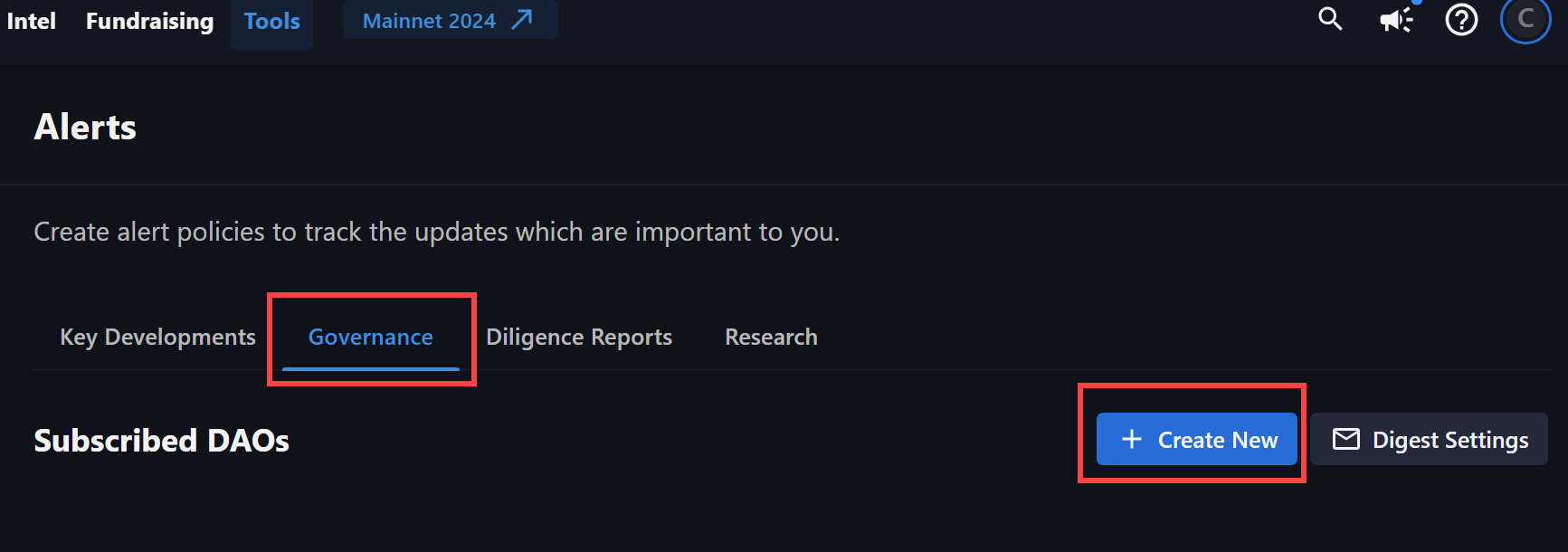
These can be set by visiting `Tools` in the top menu, selecting `Alert Manager`, and then clicking on the `Governance` tab in the Alert Manager.
# **Governance Alerts**
Governance Alerts allow you to track and stay up to date on important voting, forum and proposal activity for your DAOs of choice.
## **Access Governance Alerts**
These can be set by visiting `Tools` in the top menu, selecting `Alert Manager`, and then clicking on the `Governance` tab in the Alert Manager.
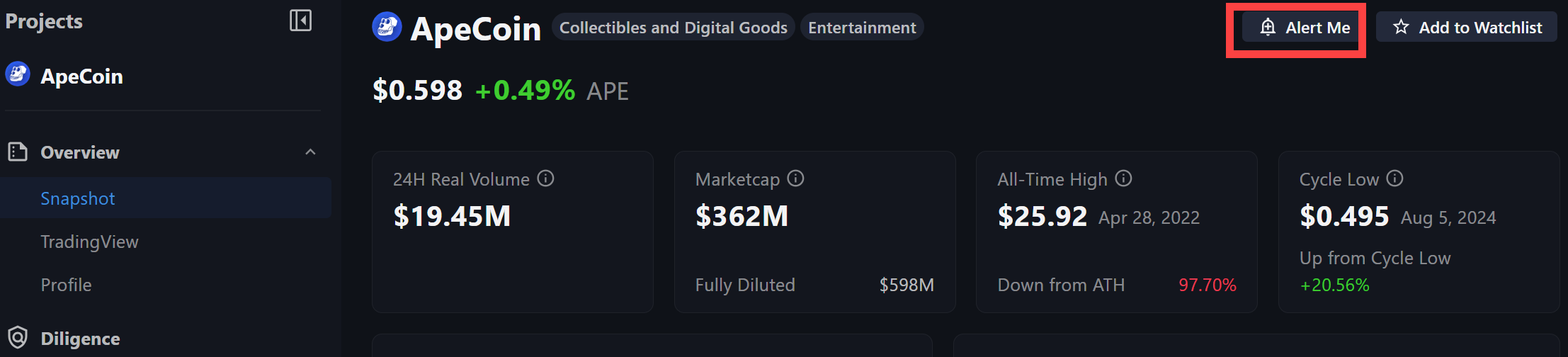
 Alternatively, you can use the `Alert Me` option in the top right corner of any Project Page and select the Governance section.
 ## **Set Governance Alerts**
A side panel will appear, displaying the different governance alert options you can create.
* **All Activity** will notify you of all new proposals, discussions and voting milestones.
* **Important Activity** will alert you on "High" and "Very High" priority discussions, proposals, and voting milestones only.
* **Voting Activity** will notify you on voting milestones on all proposals. This includes when proposals are created, when voting begins, nears completion, ends, and when the decision is executed.
* **Custom** will allow Enterprise subscribers to fully customize their specific alerts. Visit the [Custom Alerts](https://docs.messari.io/docs/governance#custom-alerts) section below for more information.
Once you have selected the desired alerting option, you will then need to choose a preferred delivery method for the alerts.
## **Set Governance Alerts**
A side panel will appear, displaying the different governance alert options you can create.
* **All Activity** will notify you of all new proposals, discussions and voting milestones.
* **Important Activity** will alert you on "High" and "Very High" priority discussions, proposals, and voting milestones only.
* **Voting Activity** will notify you on voting milestones on all proposals. This includes when proposals are created, when voting begins, nears completion, ends, and when the decision is executed.
* **Custom** will allow Enterprise subscribers to fully customize their specific alerts. Visit the [Custom Alerts](https://docs.messari.io/docs/governance#custom-alerts) section below for more information.
Once you have selected the desired alerting option, you will then need to choose a preferred delivery method for the alerts.
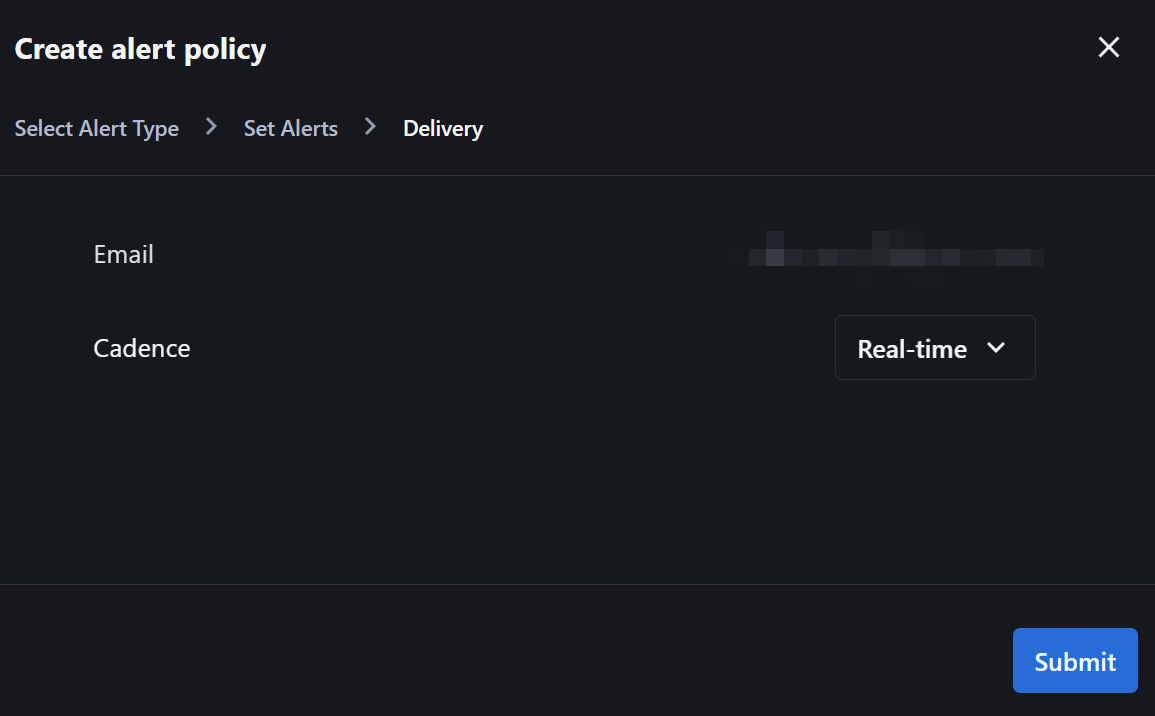 **Email** will display the associated account email to which alerts will be delivered. The **Cadence** drop-down menu will allow you to select a Daily, Weekly, or Real-Time delivery option.
Once you've selected the desired options, click `Submit` to activate the alert. You should have a pop-up toast on the bottom right hand of the window which will confirm that your alert has been created.
## **Custom Governance Alerts**
Custom Alerts allow Enterprise users to choose their specific discussion and proposal criteria for alerting. Custom Alerts can be set for New Discussions, Off-Chain Proposals, and On-Chain Proposals.
After setting your alert inclusion criteria, you will be prompted to choose the preferred delivery method as outlined above.
### **New Discussions**
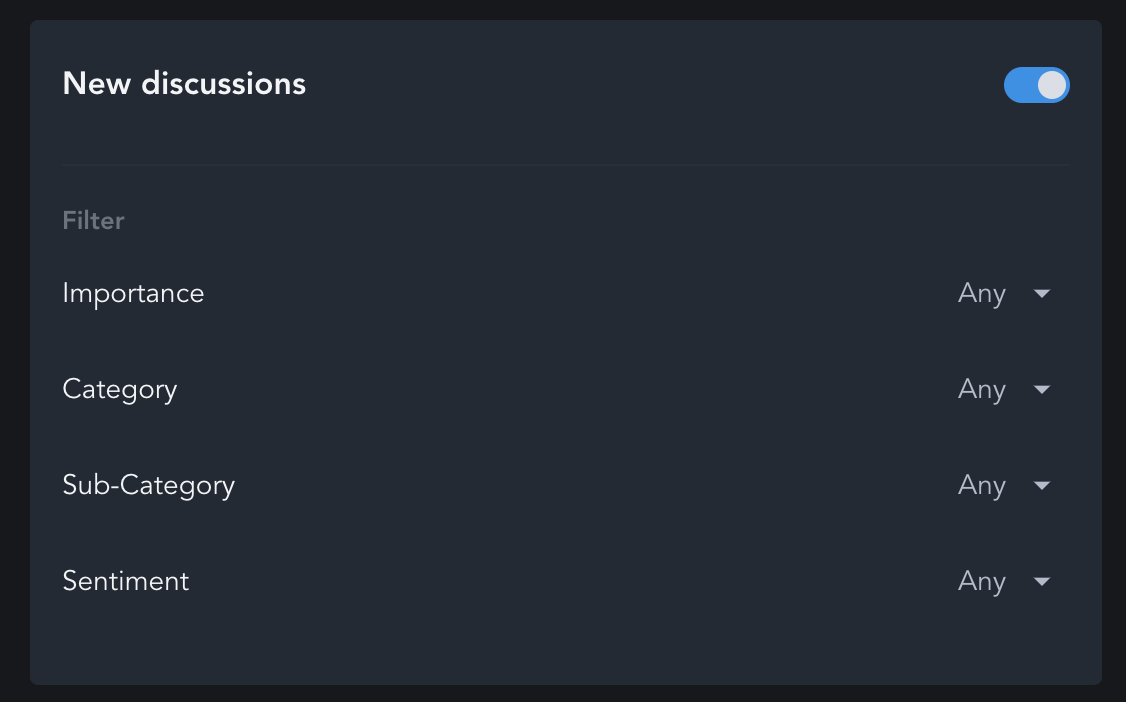
New Discussions allows you to set alerts for any new forum discussions for your DAOs of interest.
You are able to filter by Importance, Category, Sub-Category and Sentiment.
**Email** will display the associated account email to which alerts will be delivered. The **Cadence** drop-down menu will allow you to select a Daily, Weekly, or Real-Time delivery option.
Once you've selected the desired options, click `Submit` to activate the alert. You should have a pop-up toast on the bottom right hand of the window which will confirm that your alert has been created.
## **Custom Governance Alerts**
Custom Alerts allow Enterprise users to choose their specific discussion and proposal criteria for alerting. Custom Alerts can be set for New Discussions, Off-Chain Proposals, and On-Chain Proposals.
After setting your alert inclusion criteria, you will be prompted to choose the preferred delivery method as outlined above.
### **New Discussions**
New Discussions allows you to set alerts for any new forum discussions for your DAOs of interest.
You are able to filter by Importance, Category, Sub-Category and Sentiment.
 ### **Off-Chain Proposals**
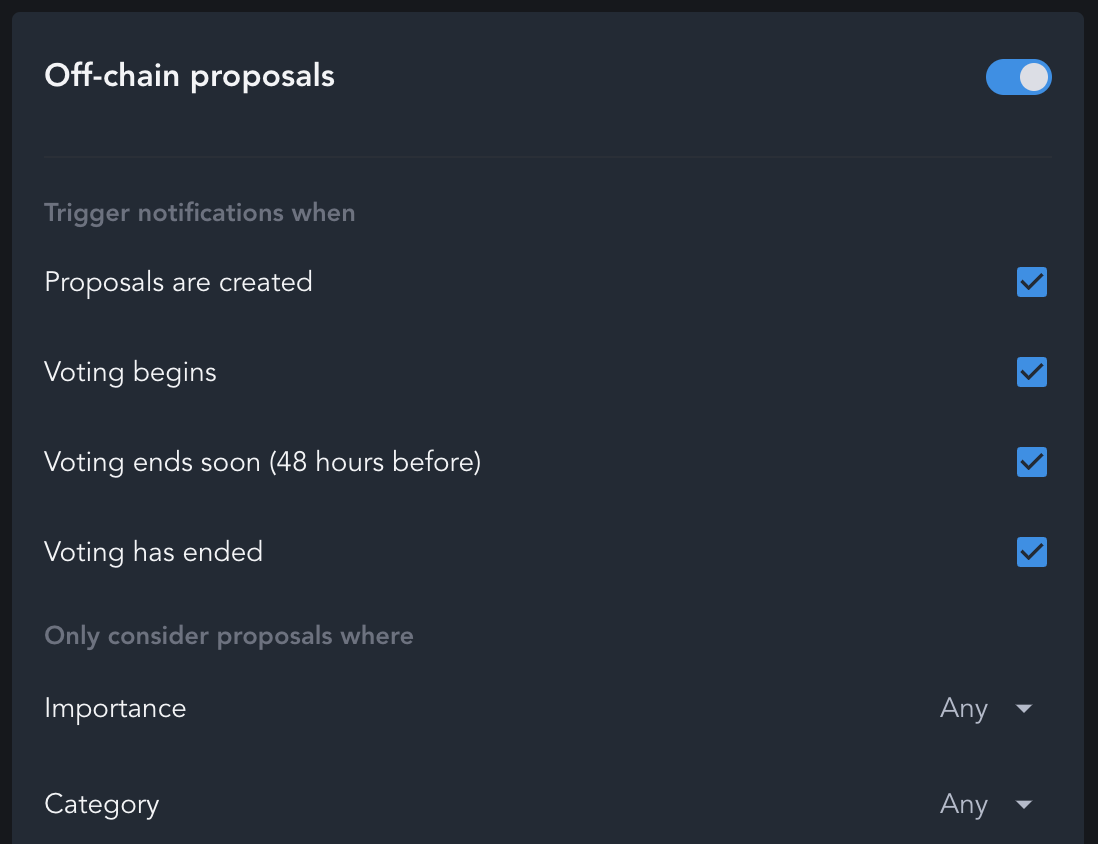
Off-Chain Proposals allow you to set alerts for any activity related to an off-chain proposal of interest.
You are able to set notifications when proposals are created, voting begins, when voting is about to end, and when voting has actually ended. You are also able to filter these notifications by Importance, Category, and Sub-Category.
### **Off-Chain Proposals**
Off-Chain Proposals allow you to set alerts for any activity related to an off-chain proposal of interest.
You are able to set notifications when proposals are created, voting begins, when voting is about to end, and when voting has actually ended. You are also able to filter these notifications by Importance, Category, and Sub-Category.
 ### **On-Chain Proposals**
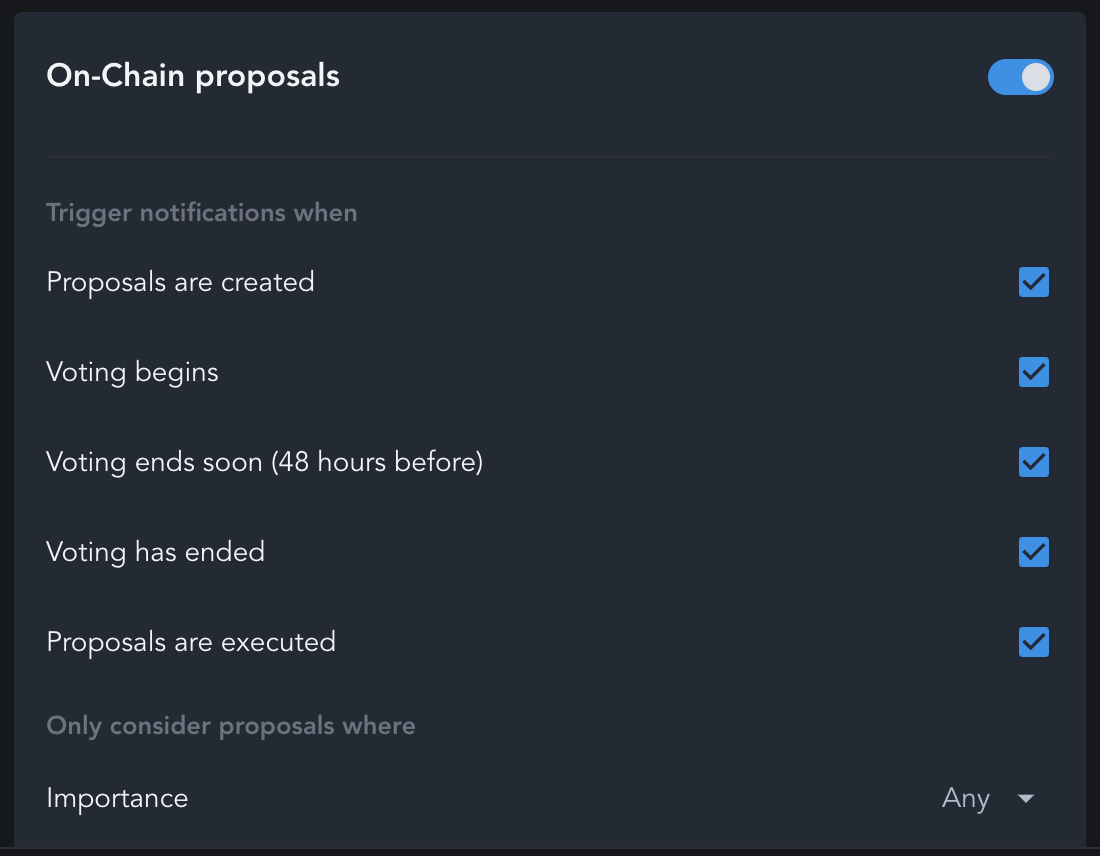
On-Chain Proposals allow you to set alerts for any activity related to an on-chain proposal of interest.
You can choose to set notifications when proposals are created, voting begins, when voting is about to end, and when voting has actually ended. You're also able to filter these notifications by Importance, Category, and Sub-Category.
### **On-Chain Proposals**
On-Chain Proposals allow you to set alerts for any activity related to an on-chain proposal of interest.
You can choose to set notifications when proposals are created, voting begins, when voting is about to end, and when voting has actually ended. You're also able to filter these notifications by Importance, Category, and Sub-Category.
 ## **Manage Governance Alerts**
Return to your Alert for editing or deletion using the same two methods for setup - either on the `Alert Me` button on the Project Page or by visiting `Tools` and clicking on `Alert Manager` to access the `Governance` tab.
A side panel will appear that will display the different governance alert options you can create. Select `Remove alerts`.
## **Manage Governance Alerts**
Return to your Alert for editing or deletion using the same two methods for setup - either on the `Alert Me` button on the Project Page or by visiting `Tools` and clicking on `Alert Manager` to access the `Governance` tab.
A side panel will appear that will display the different governance alert options you can create. Select `Remove alerts`.
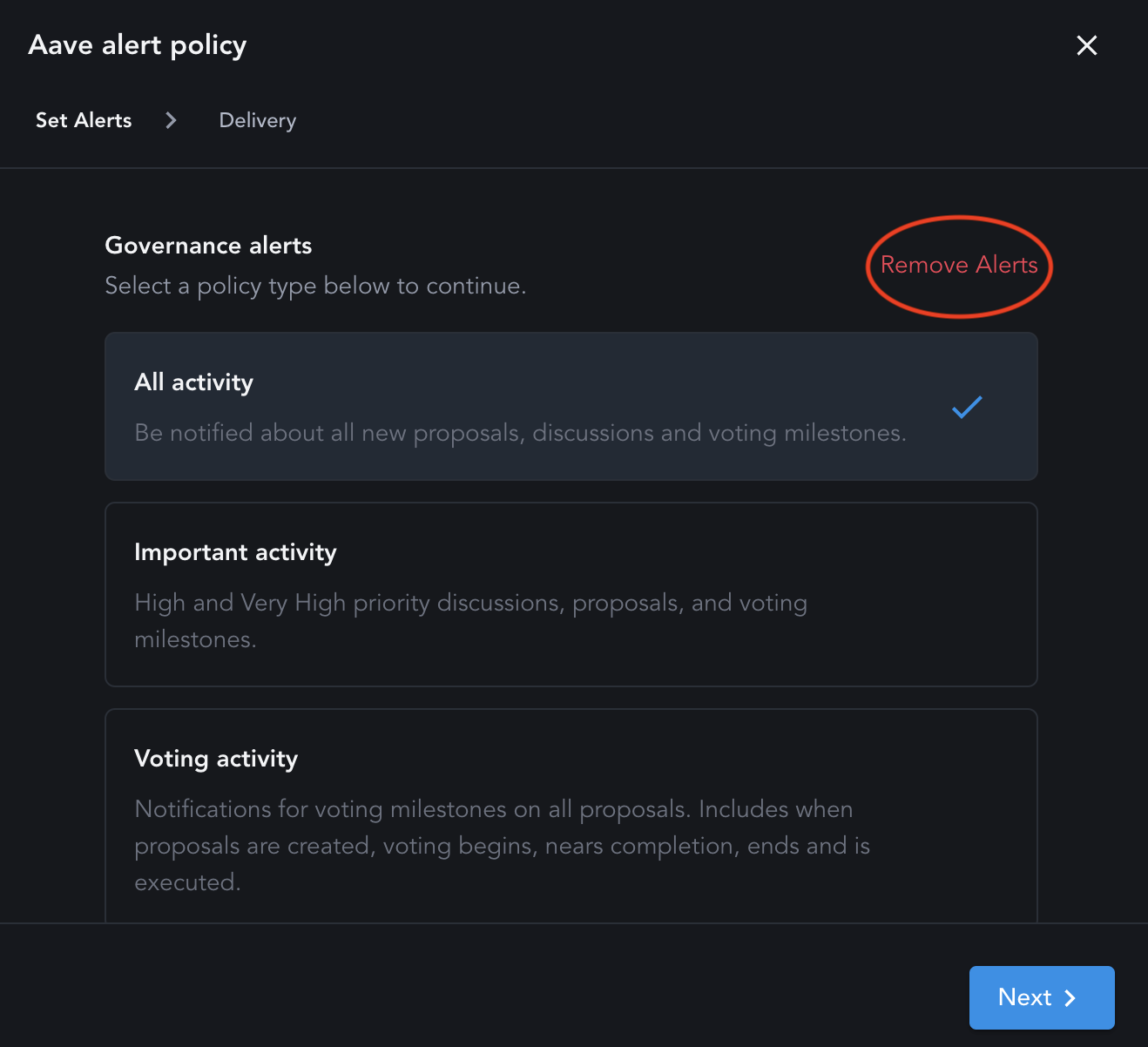 A pop-up window will appear asking you to confirm if you would like to remove all governance alerts for the respective DAO. Click `Remove Alerts`. **Note:** Custom settings will not be saved.
***
# **Diligence Alerts**
Select `Alert Me` in the top right corner of a [Diligence Report](https://messari.io/project/bitcoin/diligence-report) on the Project page to activate [Research Alerts](https://messari.io/account/alerts?tab=research). You can also visit `Tools` in the top navigation and select `Alert Manager`. These alerts will be sent to the email address associated with your Messari login.
A pop-up window will appear asking you to confirm if you would like to remove all governance alerts for the respective DAO. Click `Remove Alerts`. **Note:** Custom settings will not be saved.
***
# **Diligence Alerts**
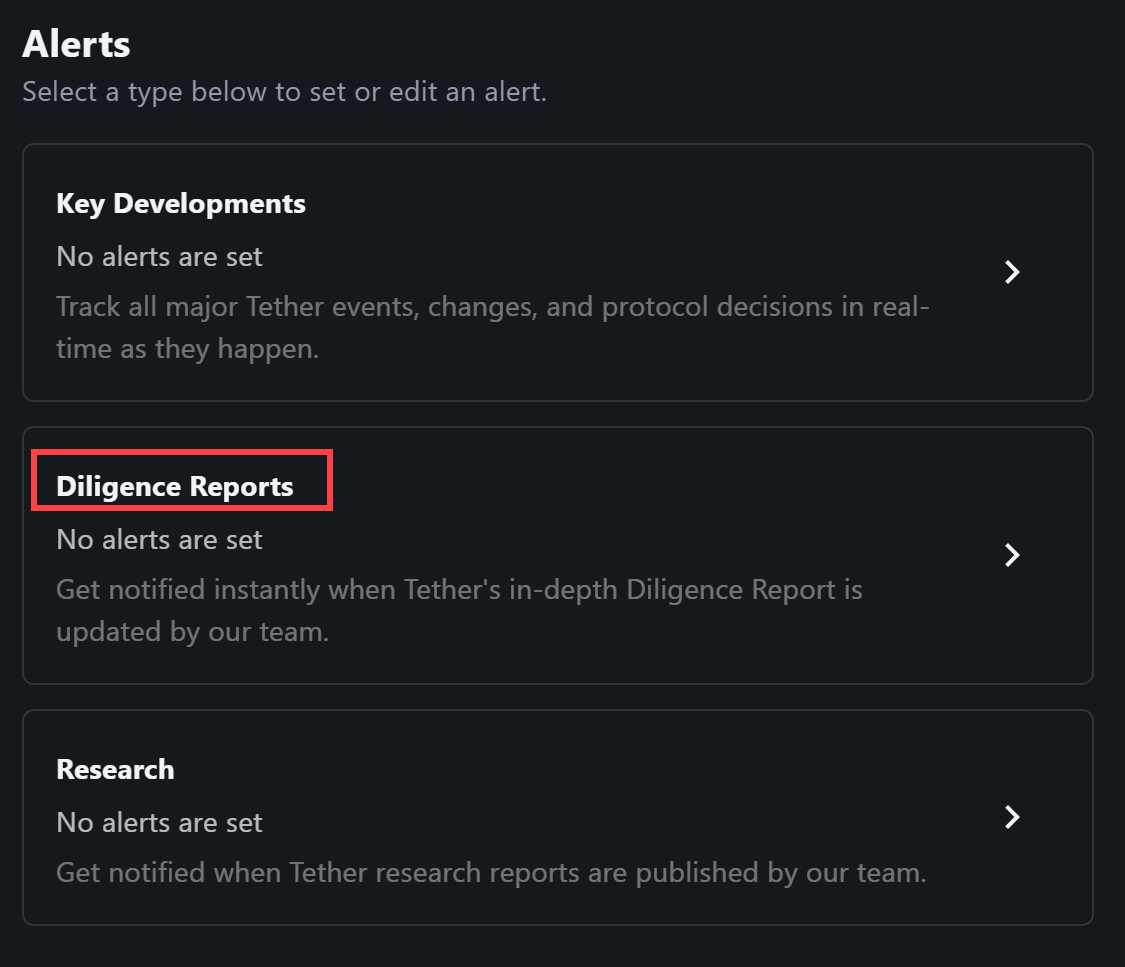
Select `Alert Me` in the top right corner of a [Diligence Report](https://messari.io/project/bitcoin/diligence-report) on the Project page to activate [Research Alerts](https://messari.io/account/alerts?tab=research). You can also visit `Tools` in the top navigation and select `Alert Manager`. These alerts will be sent to the email address associated with your Messari login.
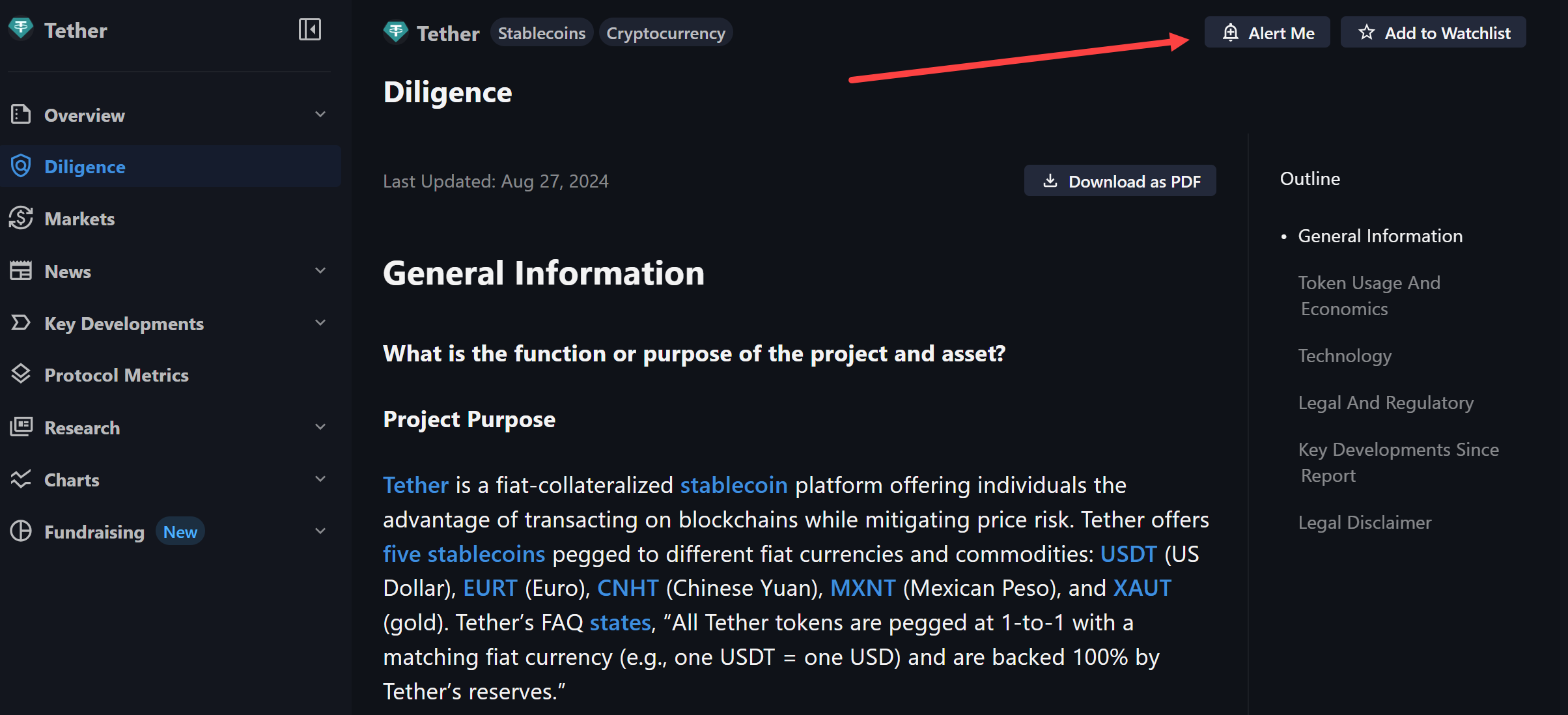 Find the selection for `Diligence Reports`.
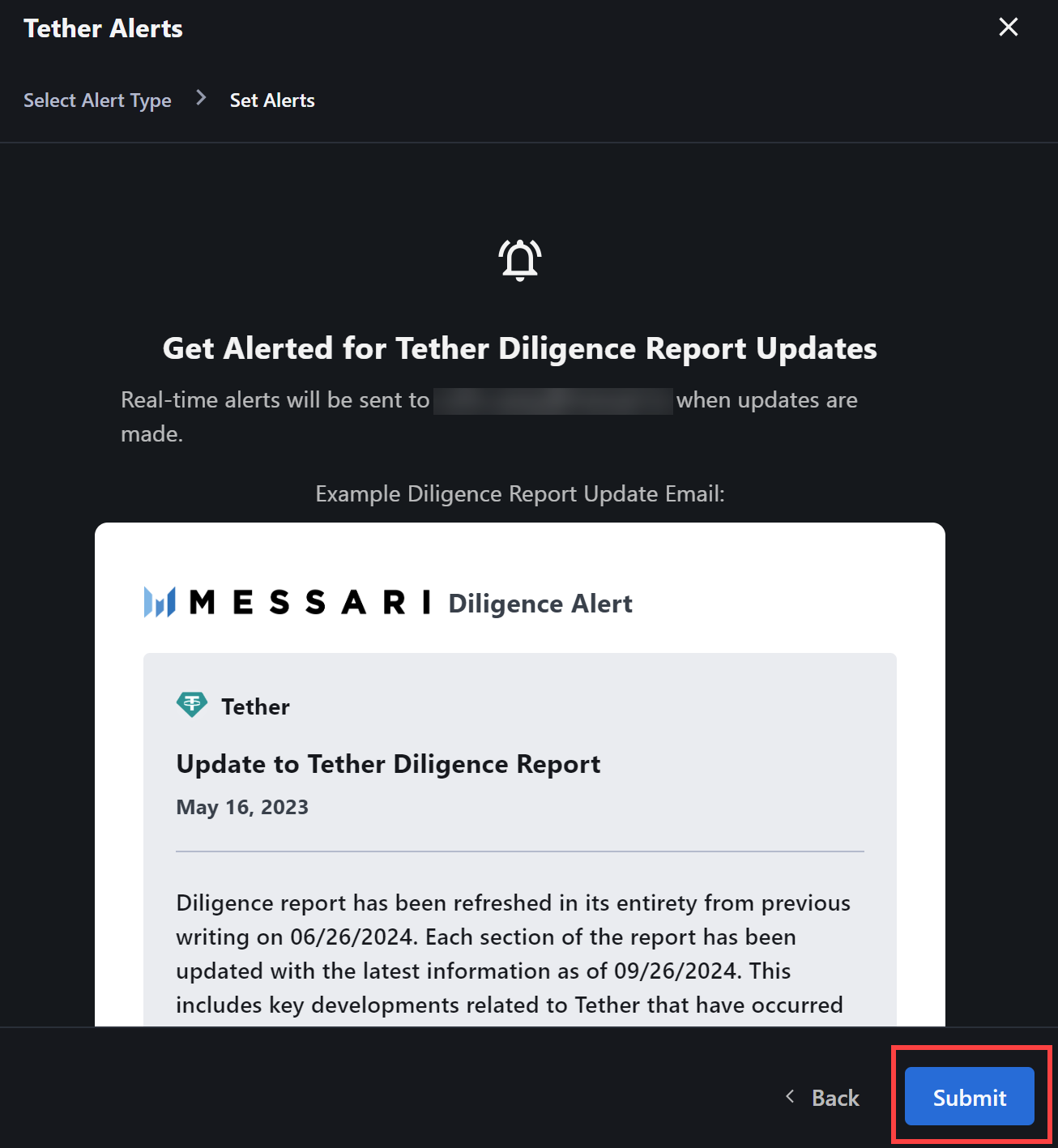
 Click `Submit` to approve the real-time alert for updates to your specified Diligence Report. Visit the Diligence [Alert Manager](https://messari.io/account/alerts?tab=diligence) to update or cancel existing alerts.
 # **Watchlists**
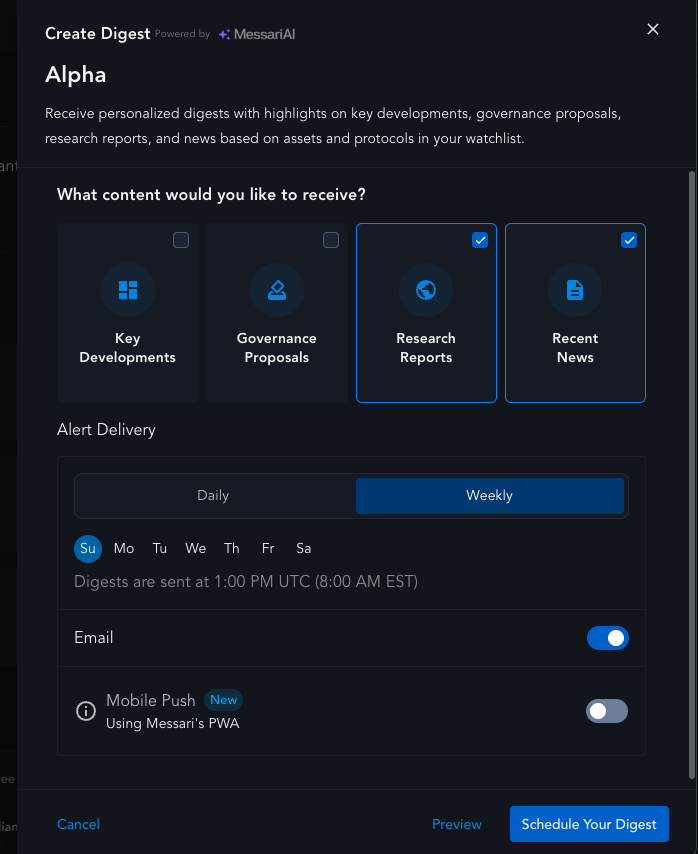
Use the `Watchlist` tab to easily manage the alerts and settings for all of your Watchlists.
Click on a Watchlist to open its AI Digest settings. Decide which information you'd like to see, when it should be sent, and how you'd like to receive it.
# **Watchlists**
Use the `Watchlist` tab to easily manage the alerts and settings for all of your Watchlists.
Click on a Watchlist to open its AI Digest settings. Decide which information you'd like to see, when it should be sent, and how you'd like to receive it.
 # **Messari PWA (Mobile Push Notifications)**
Access Messari on-the-go by adding a home screen shortcut and enabling Push Notifications on your iOS or Android device. The Messari PWA offers you an enhanced mobile experience with:
* Real-time updates
* Personalized notifications
* Easy access to [Messari.io](http://Messari.io) from your device's home screen
## **How to Install**
### **On iOS:**
* Open [Messari.io](http://Messari.io) in Safari
* Tap the `Share` icon
* Select `Add to Home Screen`
* Confirm to add [Messari.io](http://Messari.io) as a PWA on your device
### **On Android:**
* Open [Messari.io](http://Messari.io) on your Chrome browser
* Tap the `⋮` icon in the top right corner
* Select `Add to Home Screen`
* Confirm the installation to access [Messari.io](http://Messari.io) from your home screen
## **What if I'm not receiving notifications?**
### **On iOS:**
* Ensure notifications are enabled for Safari under `Settings` > `Notifications`
* Make sure "Do Not Disturb" or "Focus mode" isn't silencing alerts
### **On Android:**
* Ensure notifications are allowed for Chrome by going to `Settings` > `Apps` > `Chrome` > `Notifications`
* Make sure "Do Not Disturb" or "Focus mode" isn't silencing alerts
# **Messari PWA (Mobile Push Notifications)**
Access Messari on-the-go by adding a home screen shortcut and enabling Push Notifications on your iOS or Android device. The Messari PWA offers you an enhanced mobile experience with:
* Real-time updates
* Personalized notifications
* Easy access to [Messari.io](http://Messari.io) from your device's home screen
## **How to Install**
### **On iOS:**
* Open [Messari.io](http://Messari.io) in Safari
* Tap the `Share` icon
* Select `Add to Home Screen`
* Confirm to add [Messari.io](http://Messari.io) as a PWA on your device
### **On Android:**
* Open [Messari.io](http://Messari.io) on your Chrome browser
* Tap the `⋮` icon in the top right corner
* Select `Add to Home Screen`
* Confirm the installation to access [Messari.io](http://Messari.io) from your home screen
## **What if I'm not receiving notifications?**
### **On iOS:**
* Ensure notifications are enabled for Safari under `Settings` > `Notifications`
* Make sure "Do Not Disturb" or "Focus mode" isn't silencing alerts
### **On Android:**
* Ensure notifications are allowed for Chrome by going to `Settings` > `Apps` > `Chrome` > `Notifications`
* Make sure "Do Not Disturb" or "Focus mode" isn't silencing alerts