

Access Monitoring
Use the side menu to find theMonitoring tab. This opens the Monitoring Dashboard.
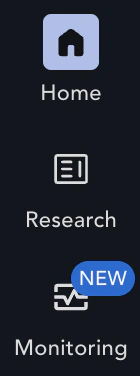
Navigating the Monitoring Dashboard
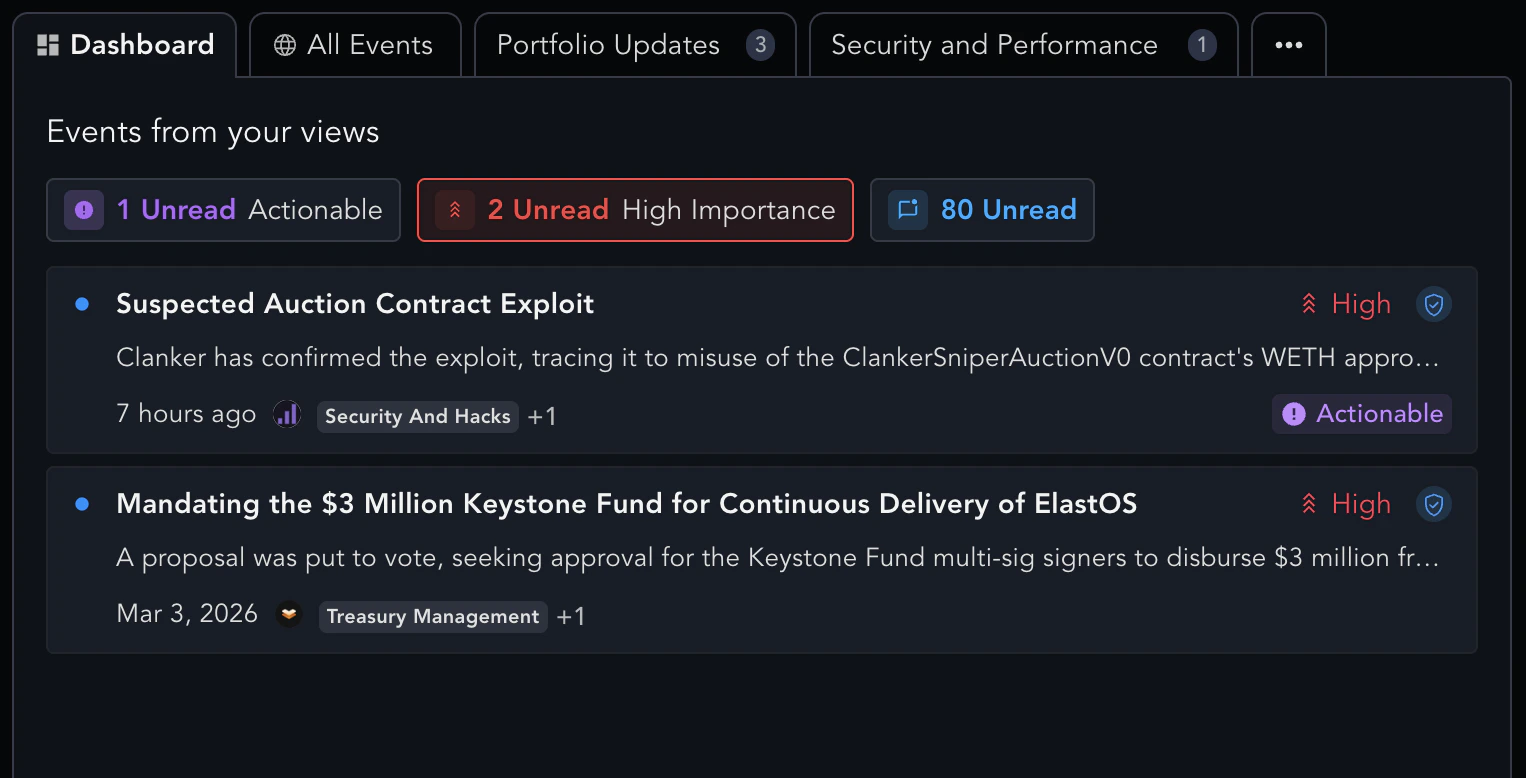
The Monitoring Dashboard is the home page of Monitoring, which surfaces the highest-priority items across every Monitoring View you’ve created. The Dashboard summarizes activity from your Views, meaning you don’t configure it directly. The Dashboard contains four main sections:- Event Aggregator — A Merged Feed of Events across all a user’s views. The Aggregator currently allows users to look at all Events that are Actionable, of High Importance, or are unread.
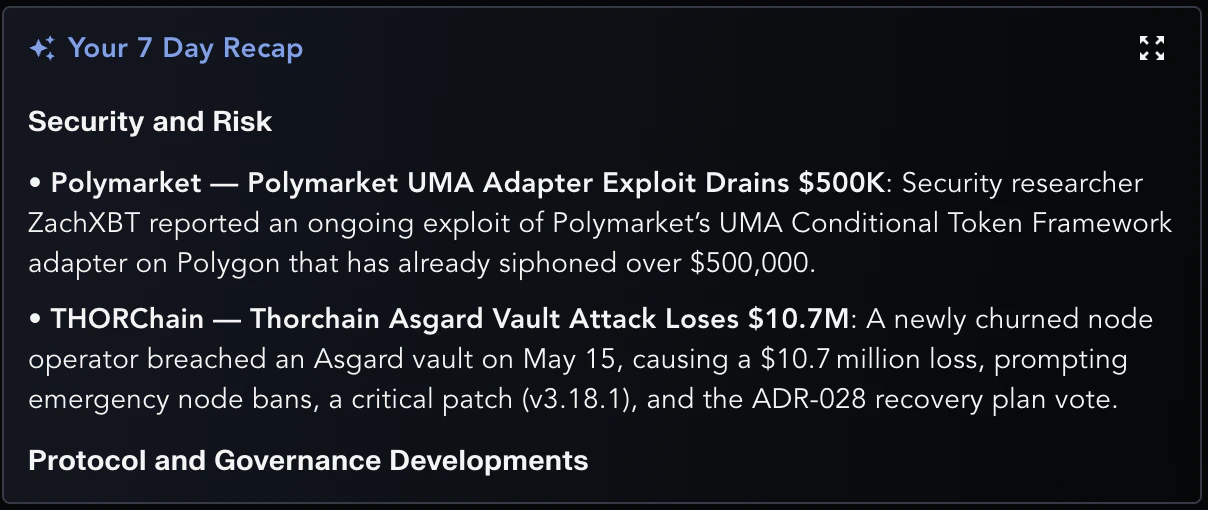
- 7-Day Recap — Aggregated TL;DRs of notable events from the last seven days. Useful for catching up after time away.
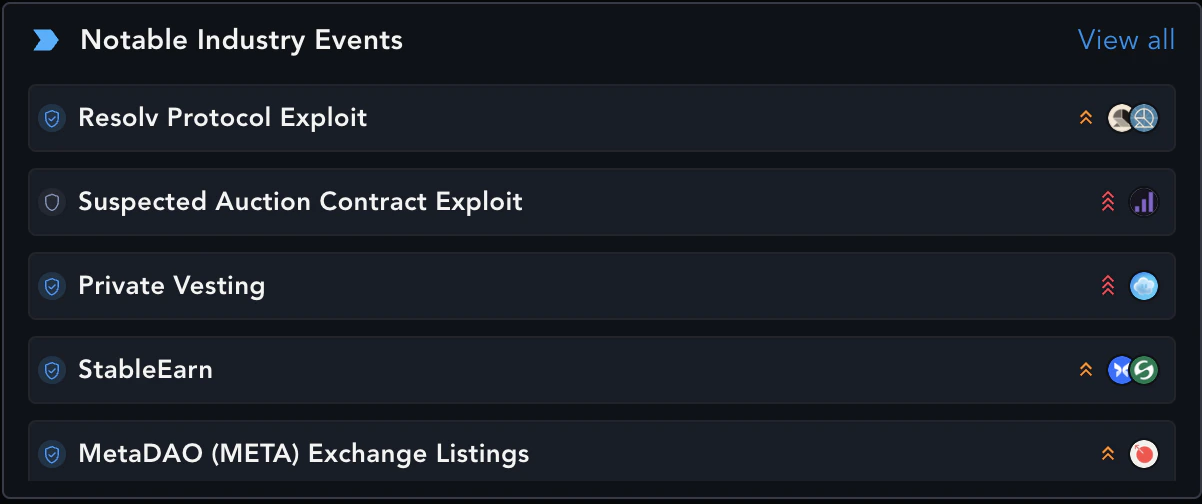
- Notable Industry Events — A Messari-curated view of impactful events across the industry. These appear regardless of your View configuration
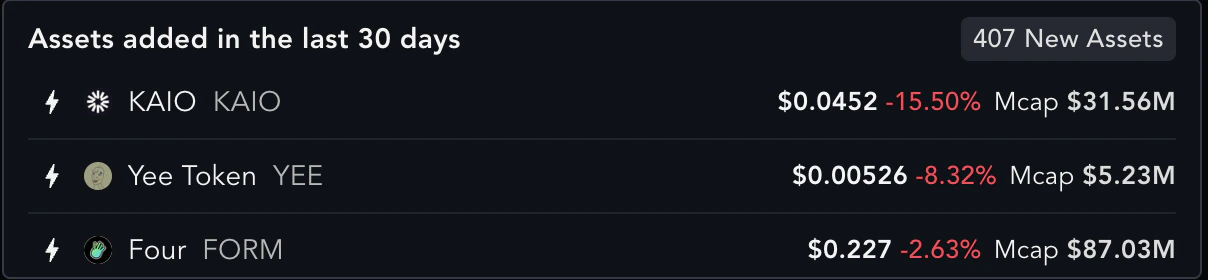
- Recently Added Coverage — Newly added assets to Monitoring you can include in new or existing Monitoring Views.
Views
A View is a saved monitoring configuration that targets specific assets or event types. Views appear as tabs across the top of the Dashboard. Each View has its own filter or agentic prompt, its own feed of matching events, and its own optional alert configuration. There is no cap on the number of Views a user can create. Views live with the user who created them. To make a View visible to your whole team, see Team-Shared Views below. Each tab will show the name of the view, and the number of events you haven’t yet viewed in that View. Additionally, a blue bell icon on a tab indicates that the View has alerts enabled.
Creating a View
Click + Create New View on the top right of the Monitoring Page to get started.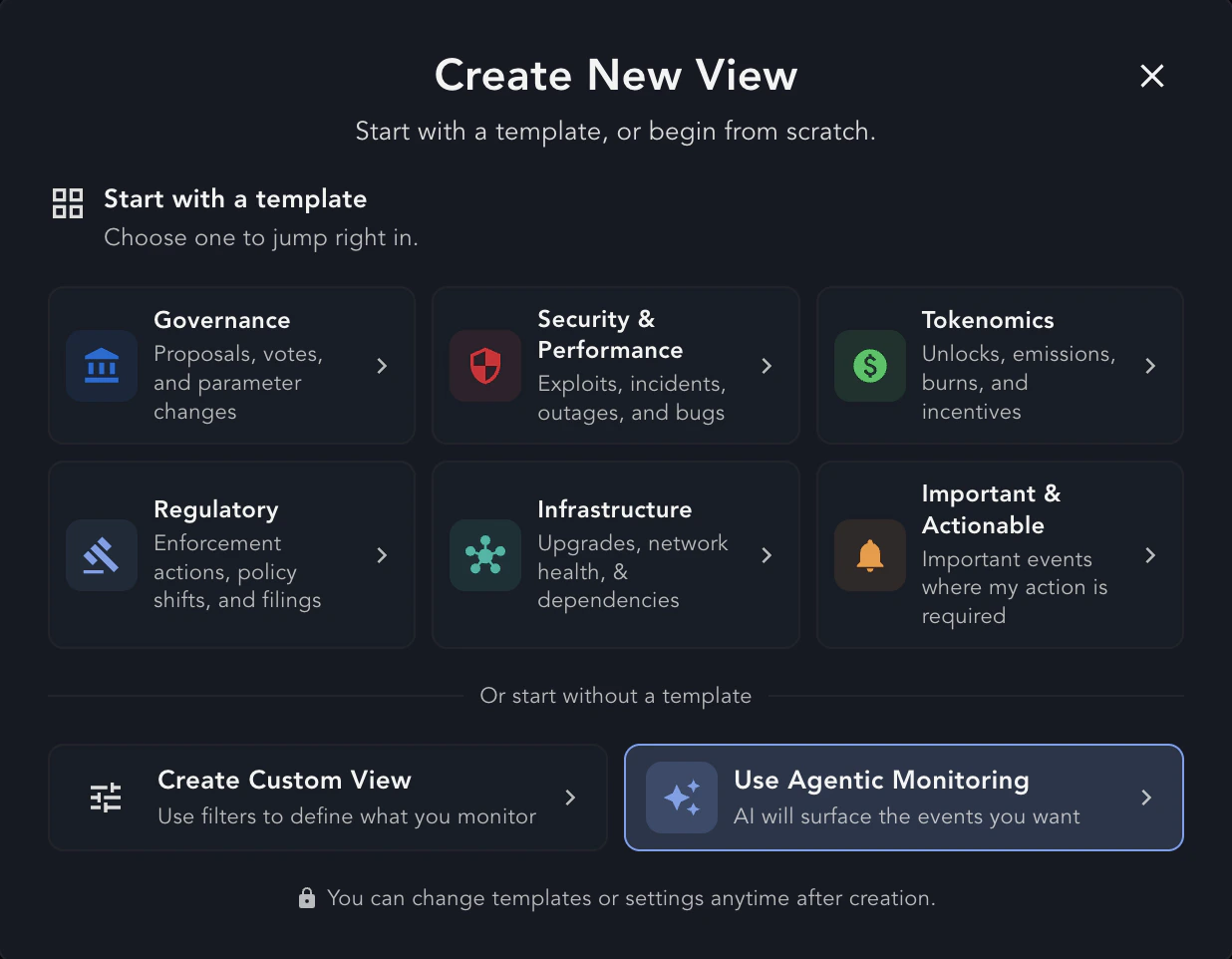
Templates
Quick-start templates create a View with certain criteria pre-populated for common scenarios. After picking a template, you still set the asset target in Step 1 and notifications in Step 3.Custom View
The custom creation process has three steps.Step 1 — What do you want to monitor?
Pick the asset target for this View:- My Watchlist — Events on assets in one of your saved Watchlist.
- Sectors — Events on assets in one or more sectors (e.g., DeFi, L2s).
- Ecosystems — Events on assets in one or more ecosystems (e.g., Ethereum, Cosmos).
- Specific Assets — Pick individual assets by ticker.
- All of Crypto — Match across every covered asset.
Step 2 — What type of events matter?
Choose one of two paths. Refine from Options (Simple View) — Pick from the available filters:- Event types — Categories and Subcategories
- Importance — High, Medium, or Low
- Actionable — toggle to limit to events that may require a direct response from certain users
- Verified only — toggle to limit to analyst-verified events
- Governance Events — toggle to limit to governance-tagged events
Step 3 — Get notified (optional)
Configure delivery for this View. All fields are optional, and a View without notifications still appears as a tab on the Dashboard.- Frequency — Real-Time (
immediately), Daily digest (daily), or Weekly digest (weekly). Real-Time alerts are typically delivered within seconds of a matching development being detected. Daily and weekly digests batch matching developments and send at the configured digest time. - Channels — Email, Slack, Web Push (browser/device), and Webhook. Multiple channels can be enabled at once, and a single View can fan out to multiple delivery channels simultaneously. For Webhook setup, signature verification, and retry behavior, see the Webhooks deep dive.
- Share with team — Toggle to make this View visible to teammates (see Team-Shared Views below).
Preview pane
Throughout the flow, the preview panel reveals the total number of events that match the current filter or prompt over the last 30 days. It will also highlight 10 recent matches and give the Event Name and Assets to review. If fewer than 10 events match in 30 days, the preview window expands to 90 days so you always see something to validate against.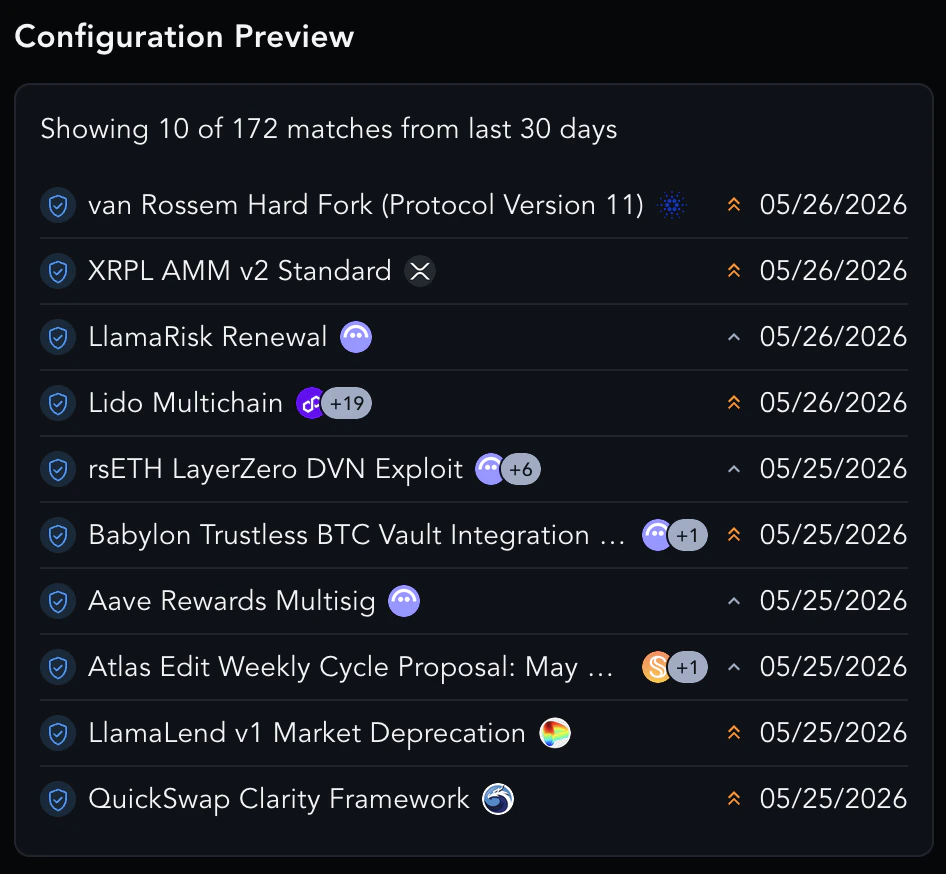
Editing a View
Click the ‘Manage This View’ icon on the tab to reopen the wizard. All steps are editable: change the asset target, swap from Simple to Agentic (or back), adjust filters, change the prompt, change notification settings, or rename the View. The preview pane updates as you edit, so you can see the impact of changes before saving. To stop receiving notifications without deleting the View, edit the View, and disable each channel in Step 3. The View tab will remain on your Dashboard.Team-Shared Views
When creating a View, the creator can choose to share it with their team. If selected, the View will appear for all team members so they can triage incoming developments from a single shared feed. Only the creator can currently edit an existing team-shared View. Other team members can view and triage the events surfaced by the View, but cannot modify its filters, prompt, or notification settings.Event & Development Fields
Each Event in Monitoring is built from one or more Developments: point-in-time updates on a topic. Developments are the basis of what alerts are based on. The fields below describe the metadata that drives filtering, alerting, and how events render in feeds and on detail pages.Importance
A static three-level scale describing the scale of the event’s potential effect on the asset or its fundamentals. Importance is determined in tandem with the category of the development, meaning that a high-importance Security Development has a different bar than high-importance Developer Tooling Development.- High — This event has a direct impact on an asset’s function, security, or the broader protocol or ecosystem. Immediate attention is warranted.
- Medium — This is a notable development worth being aware of, but does not require immediate attention or a dramatic change to the asset.
- Low — This is a routine or incremental development with limited near-term impact on most users.
Actionable
A boolean value signifying that there is something a specific group of users may need to do in response to this Development or Event. This could include node operators upgrading software before a deadline, token holders claiming funds, developers updating integrations, or users withdrawing assets from a deprecated product.Verification (Verified vs Substantiated)
Every Development and Event has a verification status:- Messari Verified — A Messari Monitoring Analyst has reviewed the Development that has been surfaced by our agentic system. The title, summary, severity, and asset associations have been reviewed and confirmed, with any additional context or information added from supplementary documentation. Verified events mirror the Legacy Intel Product. These will be marked by a Blue Messari Shield on the Dashboard and Views.
- Substantiated — The event was published by our agentic system from clustered source documents. The underlying documents are real and only from primary sources, and the system has high confidence in the classification, but a human has not yet reviewed it. These will be marked by a Gray Shield on the Dashboard and Views.

Categories and Subcategories
Monitoring launches with a detailed categorization system to allow for granular research and alerting. Currently, there are 10 categories with 55 subcategories. A Development can be tagged with more than one category or subcategory, and an Event will roll up all of its Development’s categories. For the full taxonomy tree, see the Monitoring Taxonomy page.Governance
Governance exists as a separate tag to highlight developments that have originated and proceeded through an Asset’s Governance Process. This includes Forum Discussions and offchain or onchain governance proposals.Monitoring Developments and Events
With Views set up and Alerts set, we are now looking at what each Development and Event looks like.Event Detail Preview
Selecting an Event name in the View will open the preview panel. The preview panel allows users to quickly review the Event taxonomy, as well as the Event’s entire history of Developments. If the Event has a certain number of Developments, an AI Summary will be generated at the top of the preview. Remember, there can be multiple alerts associated with each Event as each Development is evaluated independently.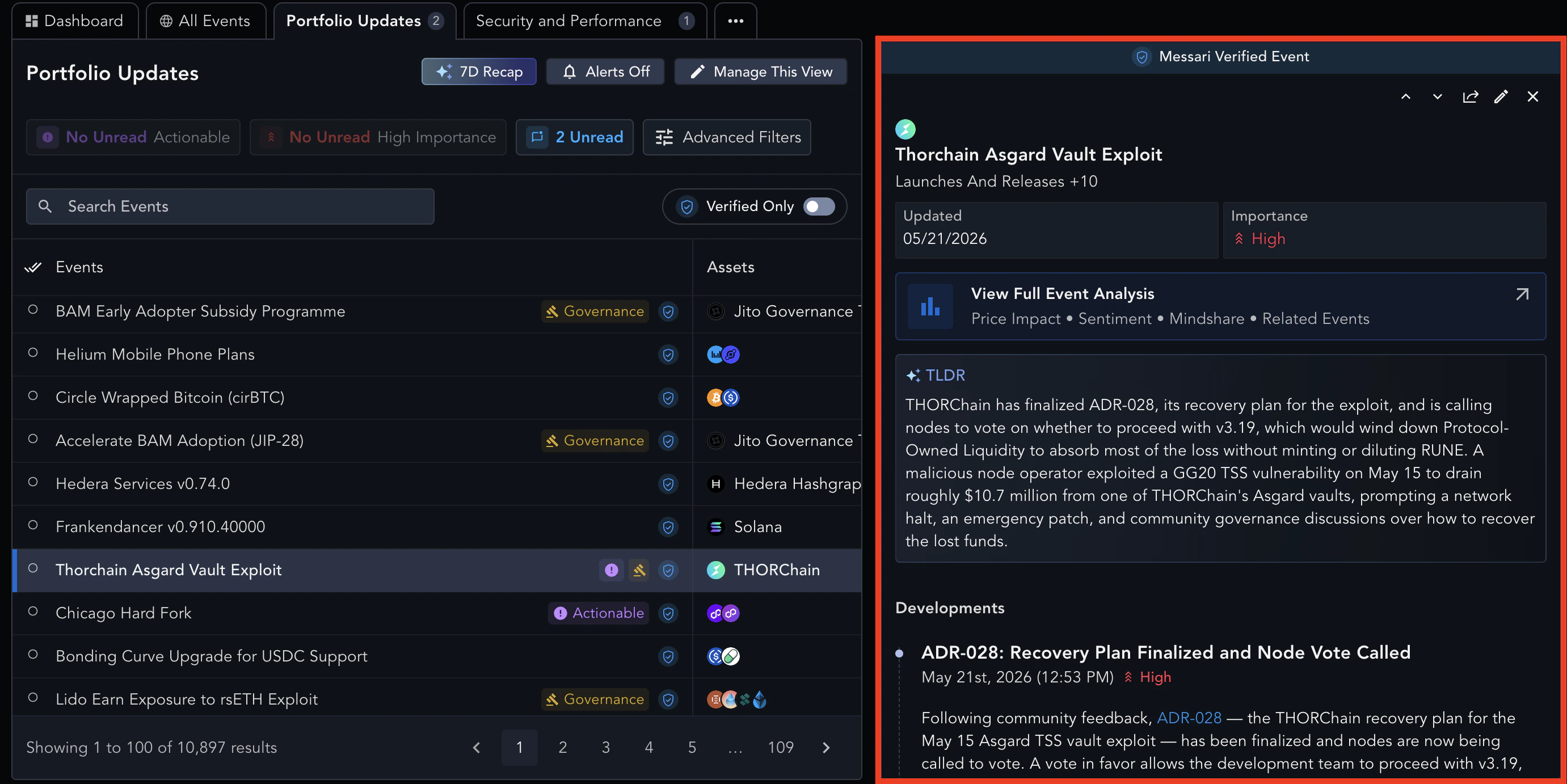
Full Event Page
Select the View Full Event link to access the Full Event Page.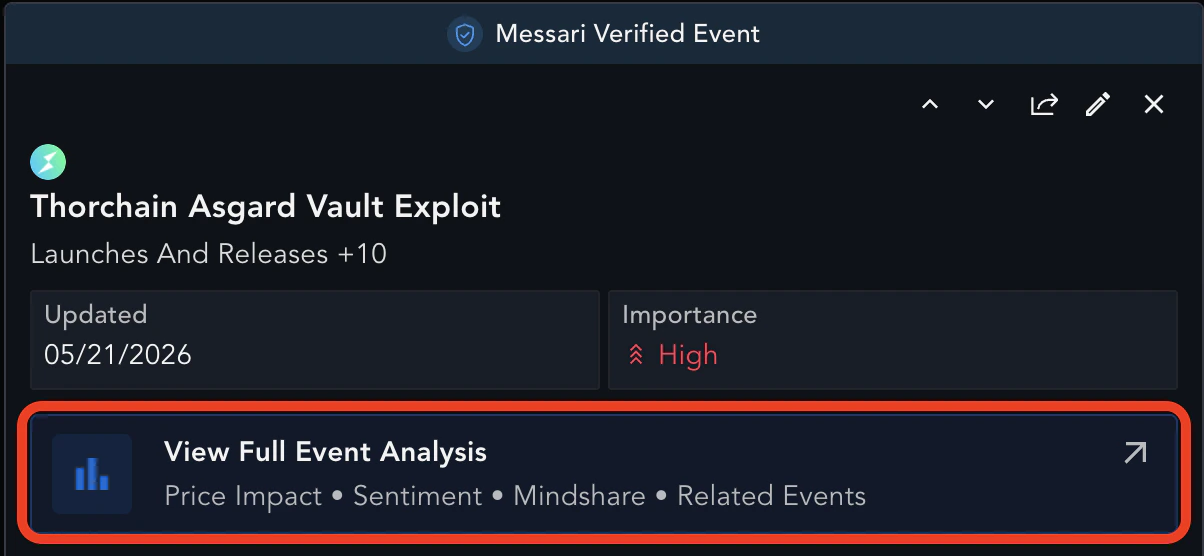
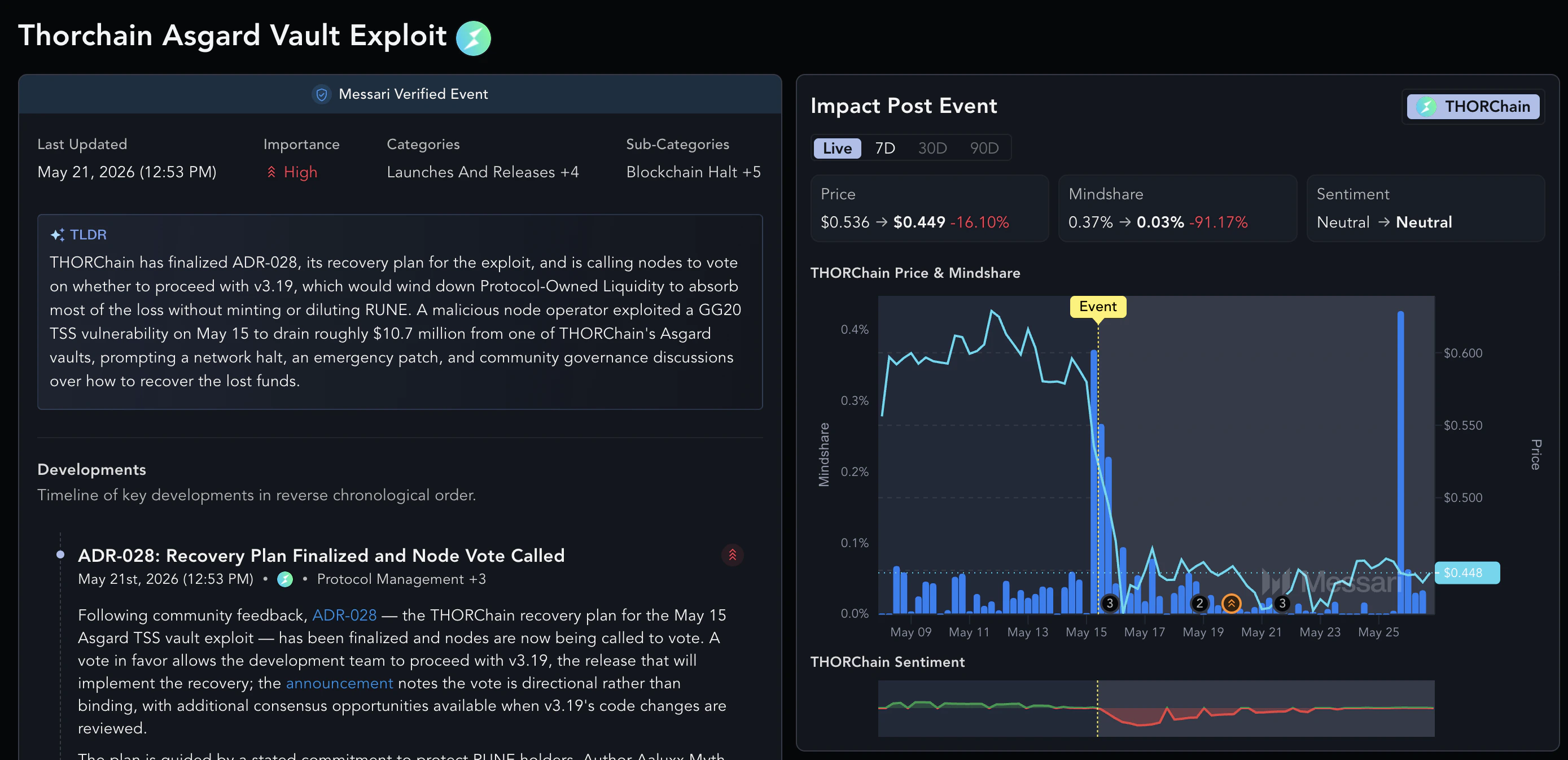
Read Receipts
Events you haven’t yet opened in a particular View show as unread in that View’s feed. The unread count appears on the View tab so you can see at a glance whether you’re caught up. Read state is tracked per View, not globally. The same event can be unread in one View and read in another (because you opened it from one feed but not the other). If an event is viewed from the Dashboard, it will change the read status across all views. Read state persists across sessions. Closing your browser or switching devices does not reset it.Slack Integration
To set up the integration for your Slack Workspace, you need to be an Admin of a Messari Enterprise team. Only Admins can install the integration and manage the list of whitelisted channels. Follow these steps to install the integration:- Head over to the Slack Integration page and click Add to Slack.
- You’ll be redirected to Slack to allow the Messari Integration to access your Slack workspace. This shows what the integration will be able to view. Click Allow to continue.
- Once the installation is successful, you’ll see a confirmation screen on Messari. Click Continue.
- By default, the Messari Integration is not allowed to post to any channel. The next dialog will ask you to select channels you want to approve. Those are the channels that will be shown as options to your Enterprise team users when they set up their Monitoring alerting views.
Note: If the channel is private, the Messari Integration app must first be invited to the channel in order to post.Users from your organization will be able to select any of the approved channels when building their alerting views on the Alerts page.
Slack Permissions Requested
Messari Intel will request permissions to:- View public channels within your workspace, in order to enable sending intel notifications to those channels
- For administrators: send messages to any public or private channel, once the app is installed
- For regular users (anyone other than the app installer): choose from a list of pre-authorized channels selected by an administrator
- Send messages to the target channels configured by your alert views
Slack Permissions Explained
There are two distinct categories of permissions:- What actions the bot is able to perform
- What actions the app is able to perform on behalf of the user who performed the install
Bot Permissions
team:read— we use this to get info about your Slack team in order to display the team logo on the settings pagechannels:read,groups:read,im:read— we use these permissions to see what public channels, as well as private channels and direct messages, that Messari Intel can write to. Note that Messari intel can only see private channels or groups once invited, and will never reveal the names of any public or private channels unless specifically whitelistedchannels:join— gives Messari Intel permission to join a channel once invitedchat:write,chat:write.public— allows Messari Intel to post to public channels without being invited, and private channels, group messages, and direct messages when invited. Messari Intel will only send messages to channels that have been whitelisted by an administrator during the install process and chosen as the delivery channel for a user’s alert view. Visit this Slack page for additional information
User Permissions
groups:read— we use this to list the private channels of the user that installed the app in order to make those channels visible for selection. Those channels will only be visible in the view selector and only when logged in as an administrator (they won’t be shown to other users)groups:write— we use this permission to invite Messari Intel to a private channel on your behalf. Messari Intel will only be invited to a private channel if it is selected as the target for an alert view and it is not already a member of that channel
Slack Data Retention
We retain certain information about the Slack integration in order for the app to function. This information includes:- The Messari Enterprise Account and the Slack Account that are linked
- Access tokens required to make API requests to Slack
- The whitelisted channel IDs (not channel names!) that are configured through the Slack install page
Disable Slack Integration
You can disable the Slack Integration at any time. This will effectively disable it for all of your Enterprise team users, and alerts will no longer be posted to your Slack workspace.Deep Dives
Webhooks
Receive monitoring alerts as HTTP POST requests to your own endpoint, with HMAC signature verification and automatic retries.