

Overview
Telegram Alerts allow you to receive monitoring alerts directly in Telegram — no email, Slack, or webhook infrastructure required. Alerts can be sent two ways:- Direct Message — the Messari bot messages you directly.
- Group — the Messari bot posts into a Telegram group you choose, so a whole team sees each alert.
Each Telegram connection is tied to a single Monitoring View. If you want
alerts from several Views in the same chat, connect each View to that chat
individually.
Connecting Telegram
You configure Telegram on the alerts step of a Monitoring View — the same place you enable email, Slack, or webhook delivery.1
Turn on the Telegram toggle
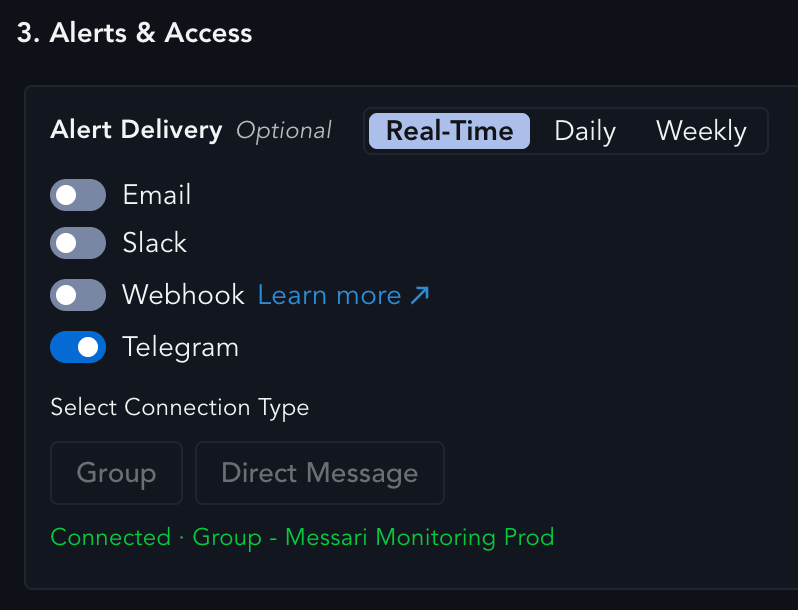
On the View’s alerts step, switch the Telegram toggle on. Two destination buttons appear: Group and Direct Message.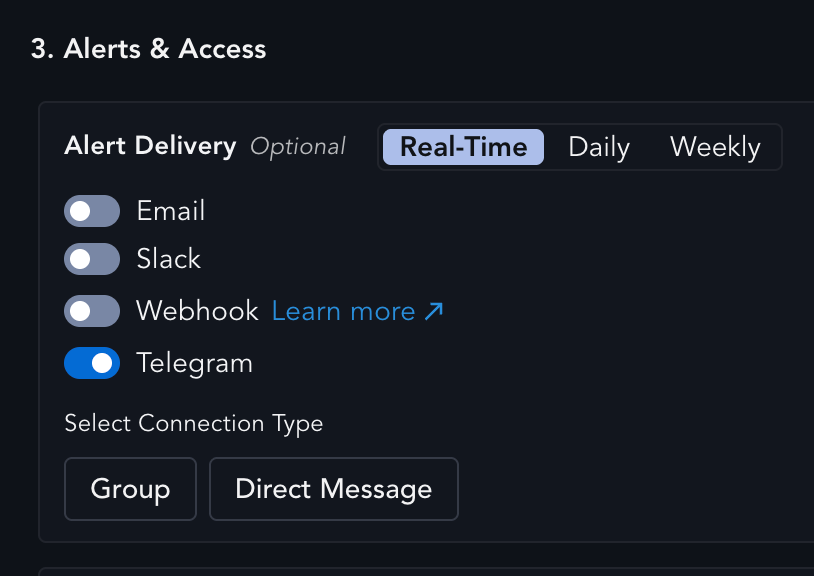
2
Choose Group or Direct Message
Pick where alerts should go. This choice generates a one-time Telegram deep link unique to this View and reveals a Click to Connect Telegram button.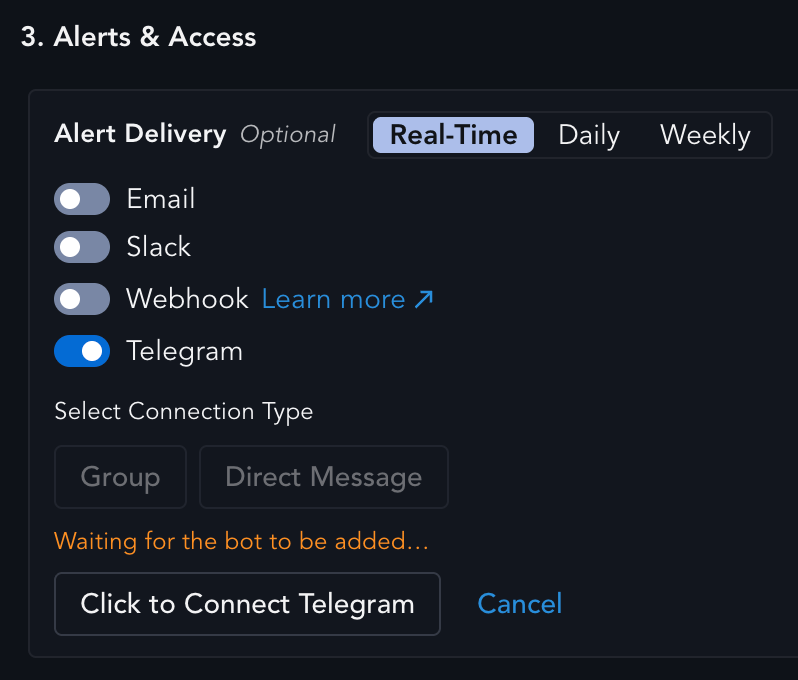
The deep link is single-use and expires after a short window. If you don’t finish the connection in time, the status shows an error — just cancel and start over to generate a fresh link.
3
Connect Telegram
Select Click to Connect Telegram. A small popup opens Telegram (the desktop/mobile app if you have it installed, otherwise Telegram Web) with the Messari bot ready to either be added to a group or directly to DMs.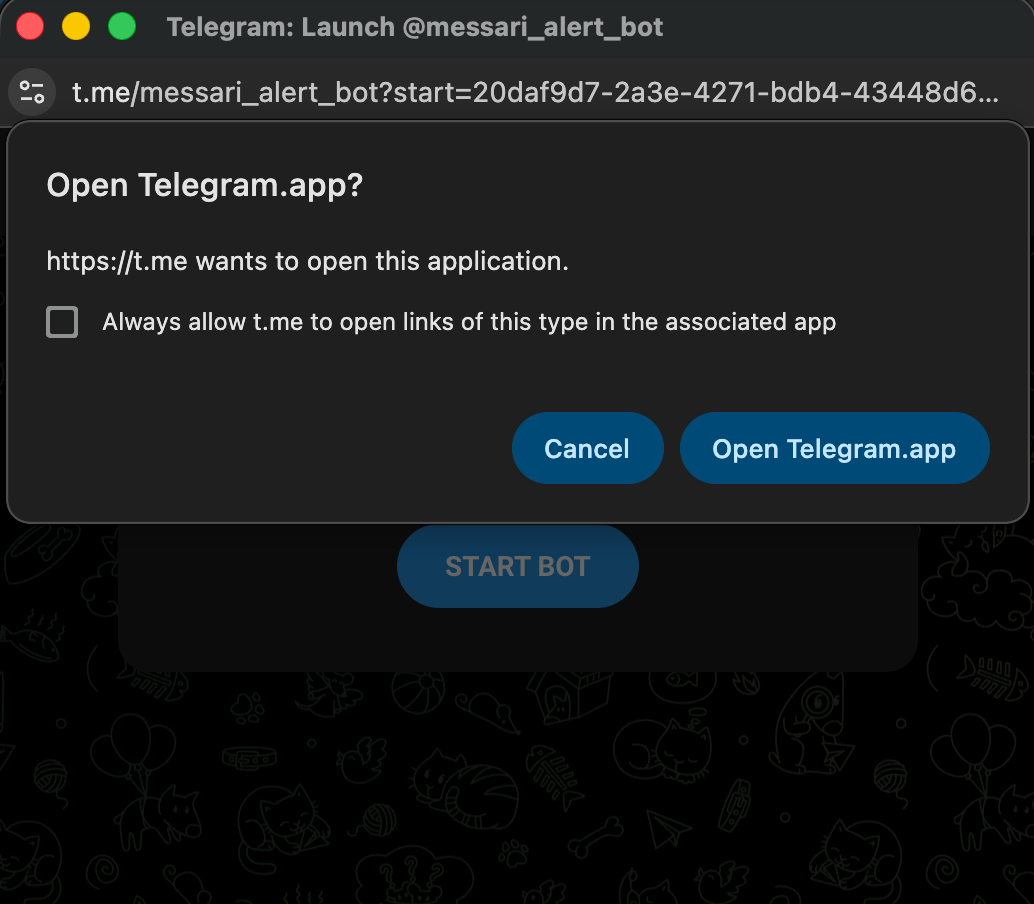
4
Complete Telegram Setup
Finish the handoff inside Telegram based on the destination you picked: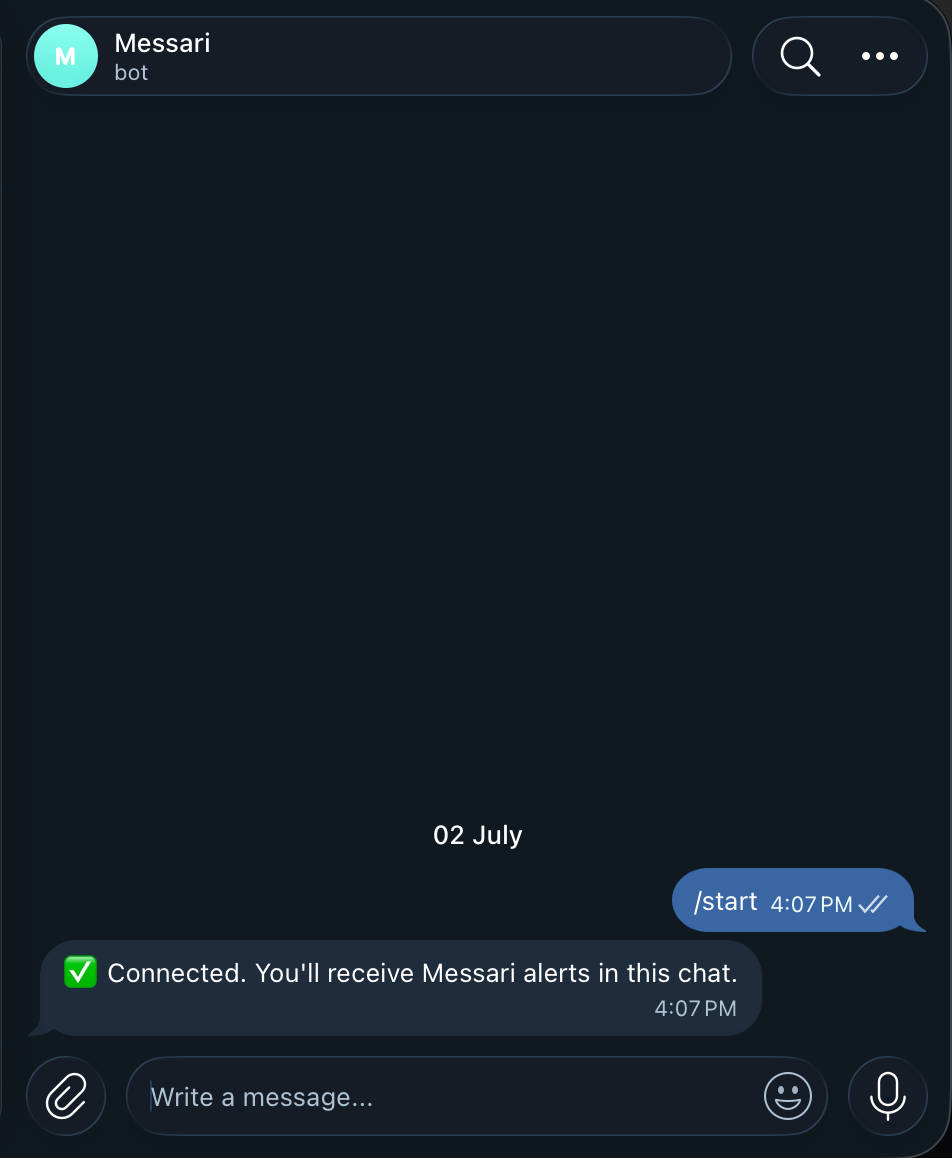
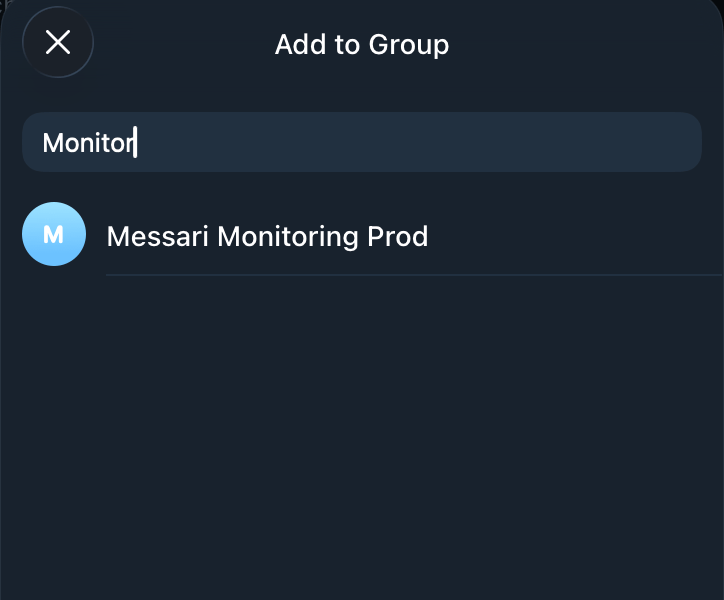
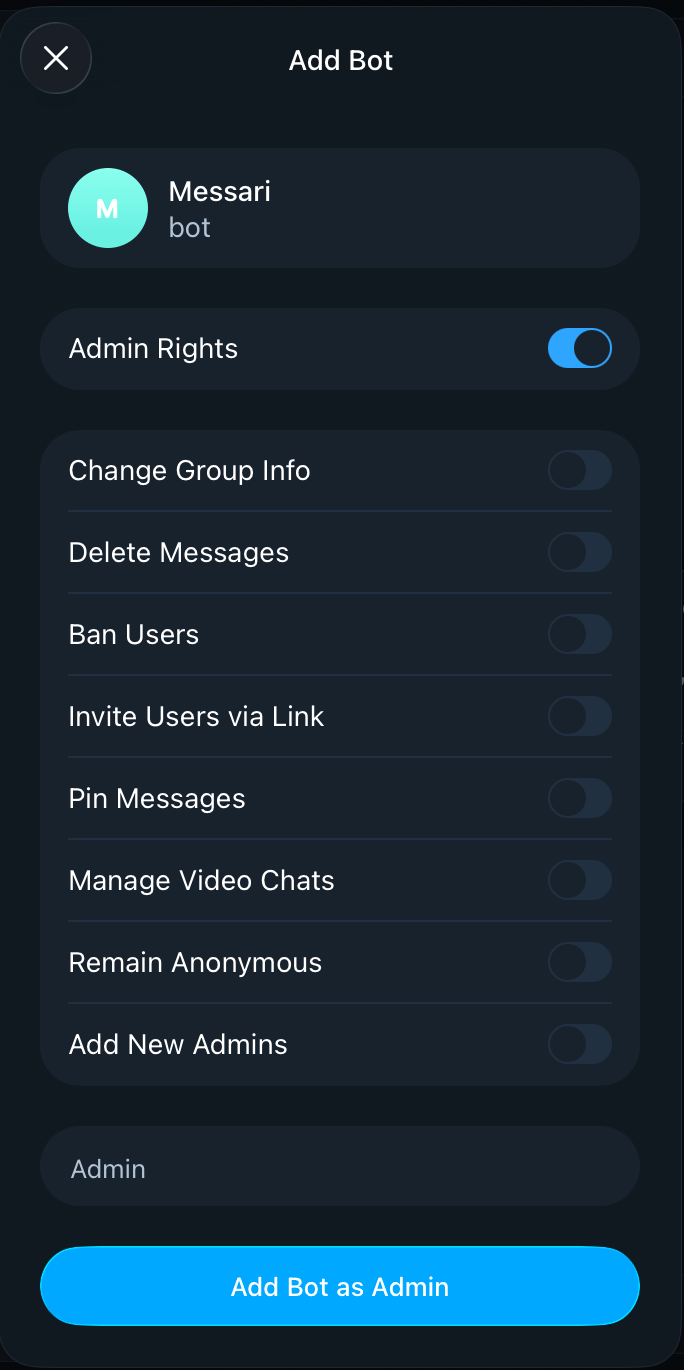
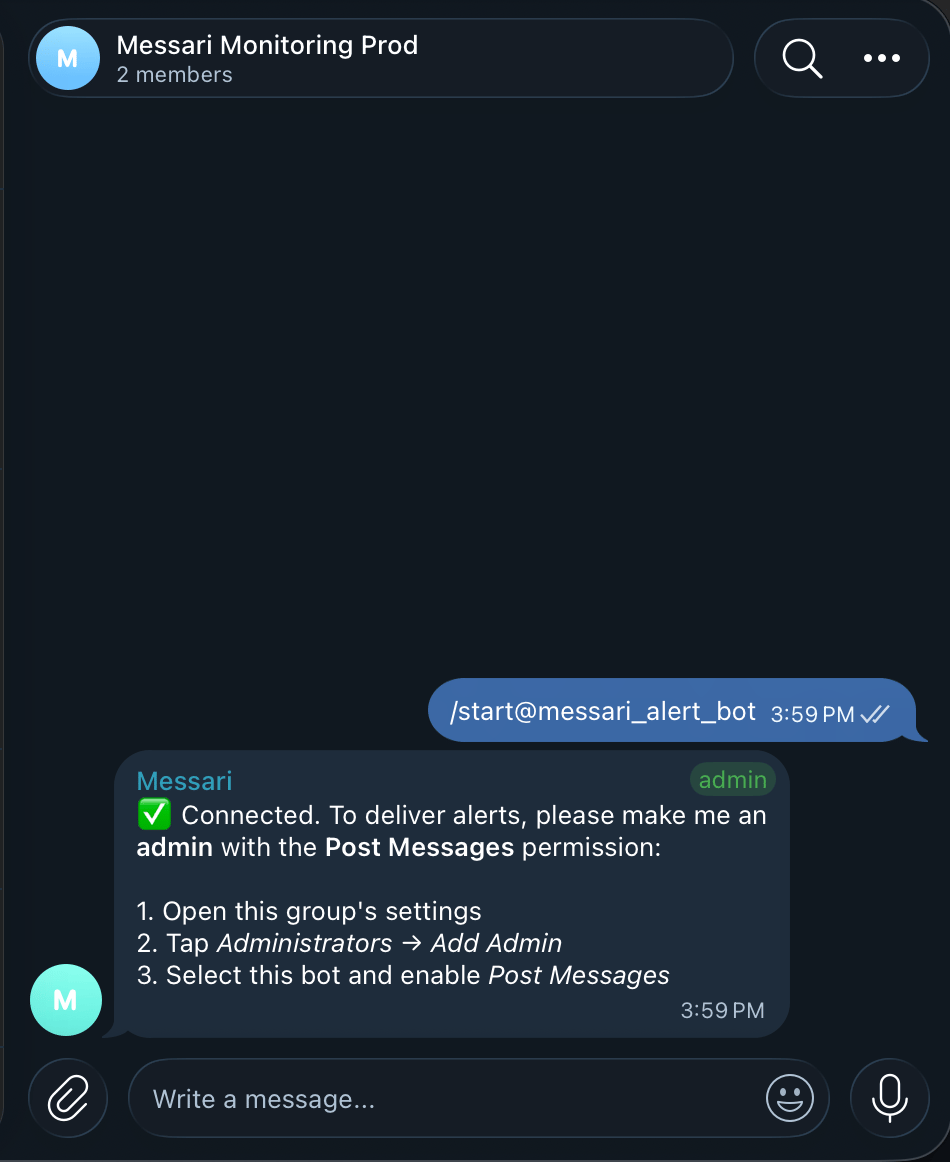
- Direct Message — setup is complete.
- Group — there’s one more step: select your group under Add to Group, then Add Bot as Admin.
5
Verify the connection
Back in the app, click Check Connection.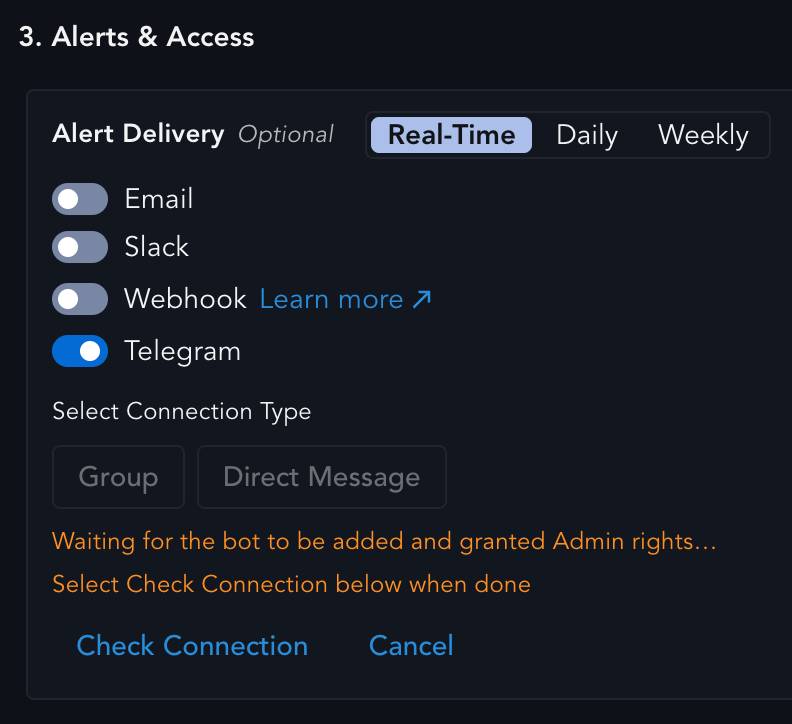
6
Save the View
Once the status reads Connected, save the Monitoring View. Telegram delivery is now active — matching alerts for this View will be delivered to the chat you connected.
Connection Status
After you click Check Connection, the status line reflects the current state of the handoff. Use it to tell whether Telegram is fully wired up or still waiting on a step:Managing an Existing Connection
Cancel before connecting. At any point before the connection completes, you can click Cancel to back out and choose a different destination (for example, switch from Direct Message to a Group). Cancelling discards the pending deep link. Expired link. The deep link is valid for a limited time. If you wait too long, the status shows an error and the link stops working. Cancel and start over to generate a fresh one. Rebinding a connected View. If you open a View that’s already connected to Telegram, you’ll see a read-only Connected row showing the current destination, with a Start over option. Choosing Start over lets you rebind the View to a different chat. The existing connection keeps delivering until the new one succeeds, so you won’t miss alerts during the switch.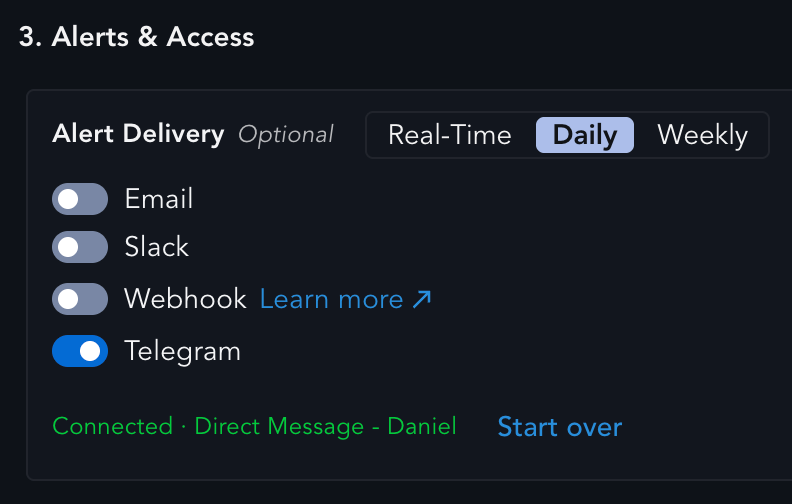
Start over replaces the destination for this View only. Other Views
connected to the same chat are unaffected.